
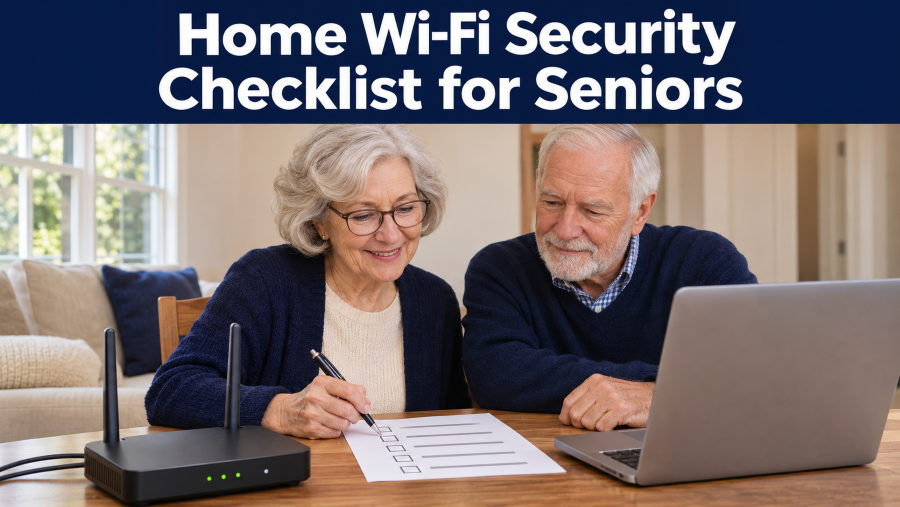
Your home Wi-Fi does far more than connect your computer. Phones, smart TVs, security cameras, and other devices share the same network, so your router’s security settings matter.
You don’t need to be a tech expert to protect your network. This checklist shows you what to check, why it matters, and when to call your internet provider or someone you trust for help.
Take the steps at your own pace. At the end of this content, you’ll find a printable checklist to keep by your router or to go through with a family member, but don’t write any passwords or other sensitive information on it.
Secure Your Two Router Passwords
Your router uses two passwords, and each protects something different. Knowing which is which tells you what to lock down first.
- Wi-Fi password: Lets your devices join your network.
- Router administrator password: Unlocks the controls that change your network settings.
Lock down both:
- Change the default administrator password, such as “admin,” right away.
- Use a different password for each.
- Make them long and unique, with no names, birthdays, or addresses.
- Keep them somewhere safe, not on your checklist.
- Share the Wi-Fi password only with people you trust, and never give guests the administrator password.
Changing your Wi-Fi password means every device must reconnect. If you can’t find the settings, call your internet provider first.
Want more ways to protect your home? Read the guide to common home security mistakes seniors should know.
Check Your Wi-Fi Encryption
Encryption scrambles what travels over your Wi-Fi so outsiders can’t read it. Open your router’s official app or settings page, find “Security” or “Encryption”, and choose from these options:
- WPA3 Personal: The best choice, if your router and devices support it.
- WPA2 Personal with AES: A solid fallback for older devices.
- WPA2/WPA3 Personal: A mixed setting that lets newer and older devices connect.
- WEP, original WPA, or an open network: Avoid these. They’re outdated or offer no protection.
Unsure which you have? Ask your provider: “Is my Wi-Fi using WPA3 or WPA2 with AES?”
Changing this setting can lock out older devices, so make sure yours still connect.
The Federal Trade Commission recommends WPA3 Personal or WPA2 Personal and warns that older WEP and WPA settings aren’t secure.
Check Who’s on Your Network
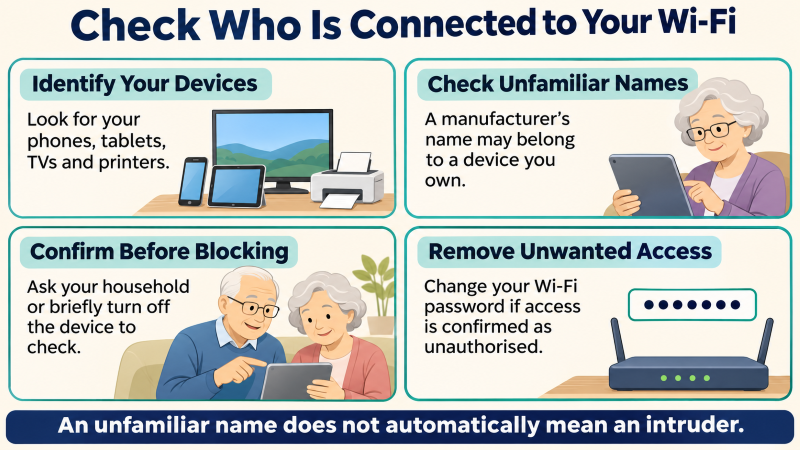
Your router’s app or settings page usually has a “Connected Devices,” “Clients,” or “Device List” section. Open it to see what’s using your Wi-Fi.
- Name what you own: Count your phones, tablets, TVs, printers, and smart home devices.
- Investigate unfamiliar names: Many devices show up under the manufacturer’s name, not one you’d recognize.
- Confirm before blocking: Ask your household, or unplug the suspect device for a minute and see if it drops off the list.
- Kick out confirmed intruders: If a stranger is on your network, change your Wi-Fi password right away, then reconnect your own devices.
An unfamiliar name isn’t proof of a break-in. If you still can’t identify a device, call your internet provider.
Own a connected camera? The FTC’s security camera guidance covers strong passwords and software updates.
Give Visitors Their Own Network
A guest network lets visitors go online without sharing your main Wi-Fi password and, if set up correctly, keeps their devices away from yours.
- Turn on “Guest Network” in your router’s official app or settings.
- Pick a separate password that’s different from your main Wi-Fi password.
- Block access to your local network whenever that option appears.
- Turn on WPA2 or WPA3 security. Never leave guest access open.
- Turn it off when guests leave. If visitors are rare, don’t leave it running.
Router settings vary, so ask your internet provider to confirm visitors can’t reach your main network.
For more on separating guests, see the Australian Cyber Security Center’s home network guidance.
Update Your Router Regularly
Router updates close security gaps, and the software behind them is often called “firmware.” Check for automatic updates in the router’s official app or settings.
- Ask your provider if it updates the router it supplied.
- Download updates from official sources only.
- Never unplug the router mid-update.
- Check ongoing support: Replace any router that no longer gets security updates.
Ignore update offers in pop-ups or messages. Open the official app yourself, or call your provider at a number you already know. Our guide to fake pop-up warning alerts explains how to spot the fakes.
Switch Off Remote Administration
Remote administration lets anyone with your router’s login change its settings from outside your home. Most households never need it, so switch it off.
- Find the “Remote Administration” or “Remote Management” setting.
- If it’s on and you don’t use it, switch it off.
- Unsure about a setting? Ask your provider first.
- Leave the firewall on. It blocks unwanted connections before they reach your devices.
Switching this off won’t affect your security camera app or your video calls. They work differently.
Stuck on a term? Our guide to technology terms for seniors explains it in plain language.

Lock Down the Phone That Runs Your Wi-Fi
If your phone runs your router through an app, guard it as closely as the router itself.
- Use a screen lock: Set a PIN, fingerprint, or face recognition.
- Set it to lock itself: Choose a short auto-lock time so the phone never sits unlocked.
- Protect the app account: Use a unique password, and turn on two-step verification if it’s offered.
- Keep recovery details current: Check that the recovery email and phone number are yours.
- Own your account: If someone helps you set up, make sure the account is in your name.
Still choosing a phone? Our Android vs. iPhone for seniors comparison shows which is easier to use.
Home Wi-Fi Security: Your Questions Answered
Is hiding my Wi-Fi network’s name worth it?
Not really. Hiding the name adds almost no security. Focus on a strong password, WPA2 or WPA3 protection, and a router that stays up to date.
Do I need to change my Wi-Fi password often?
Only when you need to. Change it right away if you think someone has it without permission, or if it’s weak or reused elsewhere. A strong, unique password doesn’t expire.
Do I have to pay for security?
No. Wi-Fi encryption and strong passwords are free. Paid services are optional, so see what they actually add before you subscribe.
Can’t find a setting on this list?
Router menus vary, and some providers manage settings for you. Instead of guessing, contact your provider through its official app or a phone number you already trust.
Final Thoughts: Secure Your Wi-Fi One Step at a Time
Protecting your home Wi-Fi comes down to a few practical checks: use separate passwords, choose the right security settings, and keep your router’s software up to date. You don’t need to be a technology expert to build that foundation.
Take it one step at a time. If a setting looks unfamiliar, ask your provider or someone you trust to explain it before you change anything, and keep your passwords somewhere safe.
Revisit this checklist whenever you replace your router, add a connected device, or change who uses your network. The printable version below can help you track what’s done and what still needs attention.