
A warning suddenly pops up on your screen, claiming your device is infected and urging you to call a support number right away. It may flash red, play a loud siren, or lock your browser tab. Although these alerts may seem convincing, they are typically tech-support scams designed to cause panic before you can respond.
Seeing one of these warnings doesn’t necessarily mean your device is infected. Usually, it’s a fake webpage designed to mimic authentic alerts from companies like Microsoft, Apple, or Google. The clearest sign? A phone number. Real system alerts never prompt you to call a support hotline.
This guide explains how to quickly identify fake pop-ups, safely close suspicious warnings, and scan your device without interacting with the alert. It also provides immediate recovery steps if you’ve already clicked a link, called a number, or granted remote access.
Quick Answer: Is the Pop-Up Warning Fake?
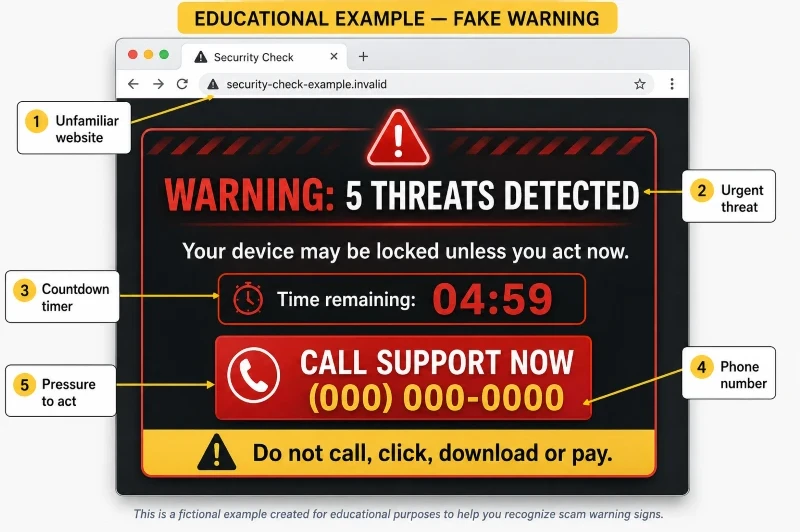
A security warning is likely fake if it shows a phone number, rings continuously, claims your device is locked, or urges immediate action. Be cautious if it asks you to download software, grant remote access, or provide payment information.
According to FTC guidance on tech-support scams, legitimate security alerts from reputable companies will never ask you to call a phone number. If a warning includes a phone number, don’t call it, even if it shows a familiar logo like Microsoft or Apple.
A pop-up is fake if it:
- Provides a phone number to call for immediate support.
- Uses flashing graphics, sirens, or audio messages.
- Claims your files or accounts are in immediate danger.
- Prevents you from closing the browser normally.
- Asks for remote access or screen-sharing permission.
- Requests passwords, card details, or personal data.
- Demands payment via gift cards, cryptocurrency, or wire transfers.
- Appears inside an unfamiliar website or browser tab.
The bottom line: Avoid clicking, calling, downloading, or paying. Instead, force-close the page using your browser or system controls, then open your antivirus app directly to run a genuine scan.
What Is a Fake Pop-Up Warning?
A fake pop-up warning is a fraudulent browser message that mimics an official security alert. It usually claims your device is infected, your data has been stolen, or your system will be locked unless you respond quickly.
Common terms for these warnings:
- Fake virus alerts.
- Scareware.
- Browser-locking pop-ups.
- Tech-support scams.
Our Guide to Technology Terms simplifies common tech terms, including unfamiliar words, in clear language.
Where Do Fake Pop-Ups Come From?
These pop-ups typically trigger when you:
- Click misleading online ads.
- Follow suspicious email or text links.
- Visit compromised websites.
- Allow push notifications on unfamiliar sites.
- Download risky files or browser extensions.
Certain warnings can hijack your screen, conceal controls, or blare sirens, making you think your operating system has crashed.
Does a Fake Pop-Up Mean Your Device Is Infected with a Virus?
Seeing a pop-up doesn’t necessarily mean your device is infected with malware. Usually, it’s just a malicious webpage that vanishes when you close your browser.
The scammer’s main goal is to make you:
- Call a fake support hotline.
- Download unwanted software.
- Grant remote device control.
- Reveal logins or financial details.
- Pay for fake support services.
- Transfer funds to “safe” accounts.
Next Steps: Close the page immediately, disconnect from the internet, and run a scan with trusted security software if you’ve downloaded a file or granted remote access.
Fake Pop-Up vs. Real Security Alert: Key Differences
Fake pop-ups are designed to mimic real security alerts. They often imitate familiar colors, logos, and technical jargon, so judging by appearance alone isn’t enough to verify whether a warning is genuine.
The most dependable indicators are the warning’s location, the instructions it provides, and your ability to verify it independently through your device’s security settings.
| Feature | Fake pop-up warning | Legitimate security alert |
| Where it appears | Usually inside a browser page or unfamiliar website. | Usually from your operating system or installed security software. |
| Phone number | Often displays a number prominently. | Does not direct you to an unexpected support number. |
| Language and tone | Threatening, alarming, or extremely urgent. | Clear, factual, and specific. |
| Sounds | May use sirens, recorded voices, or repeated alarms. | Usually silent or accompanied by a normal notification sound. |
| Device status | May claim the entire device has been locked. | Allows you to open and check the device’s security settings. |
| Payment request | May demand immediate payment. | Does not request gift cards, cryptocurrency, or money transfers. |
| Remote access | May ask you to install software that gives someone control. | Does not unexpectedly demand remote access to your device. |
| Verification | You can’t confirm it outside the suspicious page. | You can check it in a trusted security application. |
The Federal Trade Commission recommends that consumers ignore unexpected security alerts that include a callback number. If you suspect the warning might be legitimate, close the page and contact the company using a trusted website or phone number you already have.
Keep in mind that scammers may replicate company names, logos, and professional-looking designs. A sleek appearance and flawless spelling don’t guarantee a warning is legitimate.
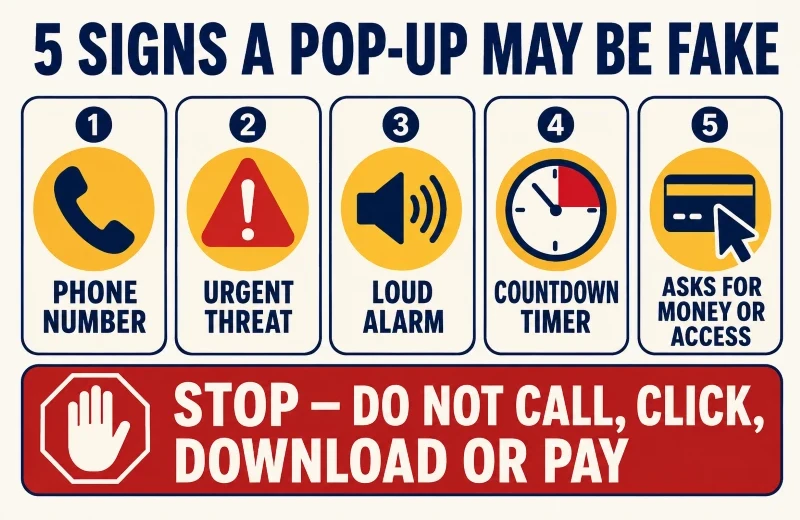
Seven Signs a Pop-Up Warning Is Fake
No single visual cue can detect all fake warnings, but a pop-up showing multiple signs is probably a scam.
It Gives You a Phone Number to Call
A phone number is a strong indicator of a fake warning since scammers hope you will call before verifying the alert.
Once connected, a fake technician may ask you to do the following:
- Install remote-access software.
- Share your screen.
- Provide passwords or bank details.
- Pay for unnecessary repairs.
- Move money to a “safe” account.
Microsoft emphasizes that its authentic error messages never contain phone numbers and that it does not make unsolicited support calls. For more details, refer to Microsoft’s official guidance on tech-support scams.
It Pressures You to Act Now
Fake warnings claim terrible things will happen unless you respond immediately.
The statement might assert:
- Your files will be deleted.
- Your accounts are compromised.
- Your computer is permanently disabled.
- Your personal info is being stolen.
- Your internet access is blocked.
Some warnings display countdown timers to induce panic and keep you from checking facts or seeking help. Real security issues let you pause and verify them using your installed antivirus app.
It Uses Sirens, Recorded Voices, or Alarms
Fake pop-ups often play loud alarms or recordings, and the noise continues until you close the browser, creating a false sense of urgency.
Common examples include:
- Repeating beeps or sirens.
- Voices telling you not to turn off your PC.
- Spoken demands to call support.
- Audio claims that data is being stolen.
- Messages stating your device is locked.
A standard system chime is typical. However, persistent alarms and recorded instructions often indicate a scam.
It Claims Your Entire Device Is Locked
Scam pages frequently trigger full-screen mode to conceal your browser tabs and address bar, tricking you into believing your operating system has crashed.
The pop-up may state:
- “Your computer has been locked.”
- “Do not restart your device.”
- “System access disabled.”
- “Call support to unlock your PC.”
Typically, only the browser tab becomes unresponsive, while the rest of your computer functions normally. Avoid clicking buttons in the alert; instead, use system shortcuts to forcibly close the browser.
It Asks You to Install Software or Grant Remote Access.
Scammers frequently advise you to install screen-sharing applications. Although these tools are useful in legitimate situations, granting control to an unfamiliar person can be risky.
With remote access, a scammer can:
- View your private files.
- Watch you type passwords.
- Access online banking apps.
- Install hidden malware.
- Alter core system settings.
- Fake technical problems to scare you.
Never allow remote access through an unexpected pop-up. If you have already granted it, disconnect from the internet immediately and contact your local IT support team.
It Demands Money or Personal Information
Authentic system alerts will never request your bank accounts, credit cards, or gift cards.
Be extremely suspicious if anyone demands:
- Credit or debit card numbers.
- Online banking credentials.
- Gift card redemption codes.
- Cryptocurrency transfers.
- Wire transfers.
- Passwords or two-factor codes.
- Money moves to “protected” accounts.
The Federal Trade Commission clearly warns that only scammers will ask you to transfer money to ‘protect’ it. Never send funds in response to a pop-up.
It Appears on an Unfamiliar Web Page
Most fake warnings are actually web pages rather than operating system alerts. If there’s a browser bar around the message, it suggests the message is from a website.
Watch out for:
- Misspelled or strange website addresses.
- Long URLs with random letters and numbers.
- Browser tabs with alarming titles.
- Web pages pretending to run a live disk scan.
- Alerts that vanish when you close the browser.
Visual logos and padlock icons do not ensure safety. Scammers can easily replicate brand images. A padlock icon indicates an encrypted connection, but does not confirm the website owner is trustworthy.
If you encounter multiple warning signs at once, avoid interacting with them. Instead, close your browser and run a scan with reliable security software.
How Can You Recognize a Genuine Security Alert?
A real security alert comes from your operating system, web browser, or installed security software. Instead of causing panic that prompts a phone call, it highlights a specific problem and lets you manage it directly.
Security alerts usually originate from:
- Built-in tools like Windows Security.
- Integrated macOS security features.
- Web browsers blocking unsafe downloads or dangerous sites.
- Antivirus software you knowingly installed.
- System applications requesting necessary updates.
Signs That a Security Alert Is Genuine.
A legitimate alert operates discreetly and professionally.
It will generally:
- Use clear, neutral, and factual language.
- Name the specific file, application, or web address involved.
- Appear in your system’s notification center or security app.
- Direct you to device settings to resolve the problem.
- Offer standard actions like blocking, quarantining, or removing.
- Remain logged in your security history after closing your browser.
- Avoid asking for payment, phone calls, or remote access.
For instance, Windows users can directly open the Windows Security app to check Virus and threat protection or review the Protection history. Microsoft provides detailed instructions in its official guide on virus and threat protection.
How to Verify an Alert
Always verify notifications that appear legitimate. Do not click links, call phone numbers, or press any buttons on a warning you suspect.
Follow these steps instead:
- Close or minimize your browser.
- Open your security app directly through the system menu.
- Check your notification center, protection history, or scan logs.
- Confirm the warning appears inside your trusted app.
- Visit the official software website directly if you need assistance.
Check whether you intentionally installed any third-party antivirus software. When in doubt, consult the Technology Buying Checklist for Seniors to assess program compatibility, costs, and official support channels.
Also remember that logos and visual styles are easy to copy. Credibility comes from independent verification within the software already on your system, not from appearance alone.
How to Close a Fake Pop-Up Safely
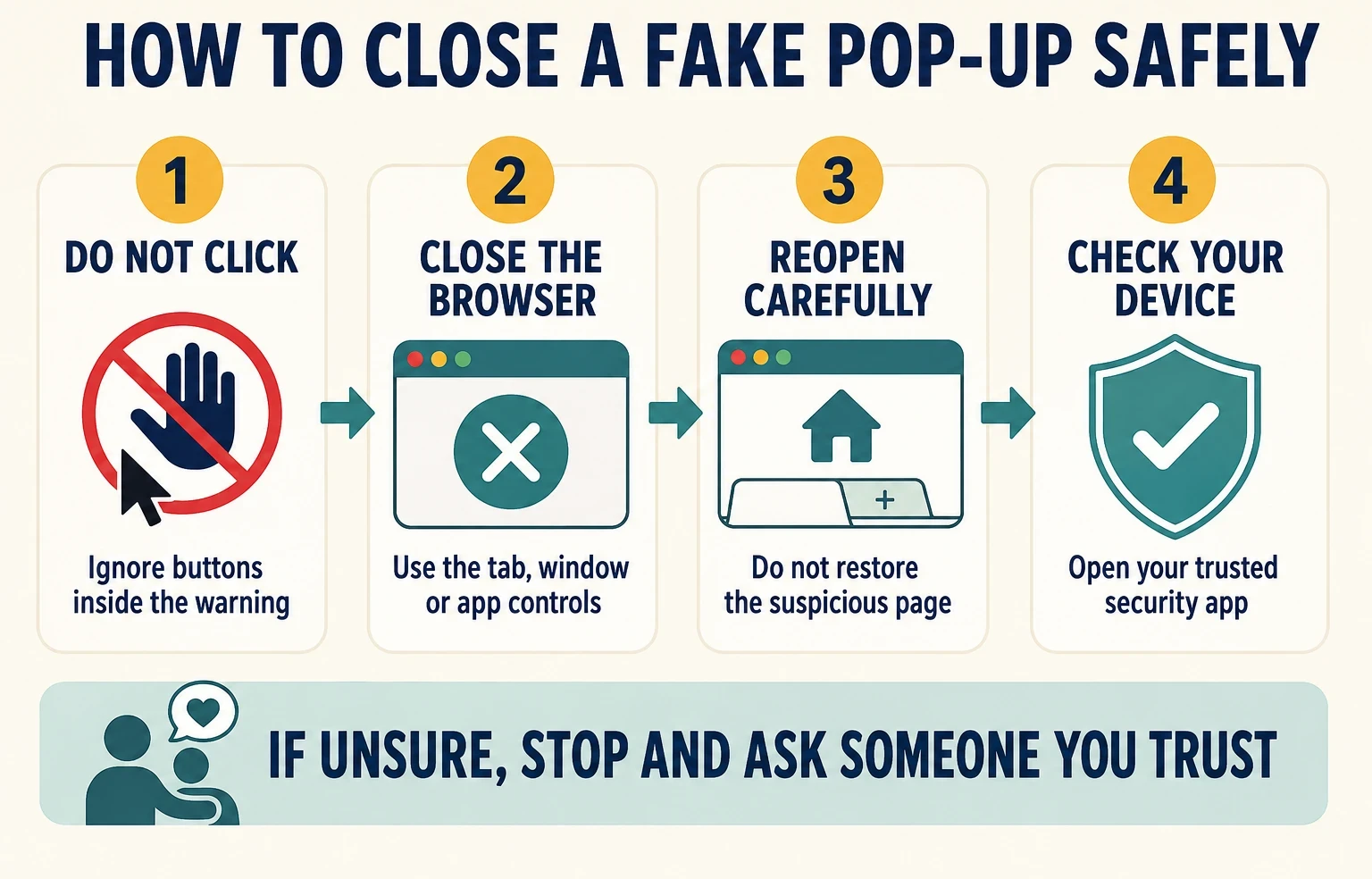
Avoid clicking any buttons within a suspicious warning. This includes buttons labeled Close, Cancel, Scan, or Remove. Even if a button appears safe, it might initiate a file download or redirect you to a malicious website.
Use your official browser or device controls to close the page instead.
Step 1: Try to Close the Browser Tab
If your browser controls remain visible:
- Click or tap the X directly on the browser tab.
- Avoid clicking any X displayed within the pop-up graphic.
- Close the entire browser window if the specific tab refuses to close.
- Decline all prompts asking you to download, scan, or clean your system.
- Press the Esc key to exit full-screen mode if the page fills your display.
Step 2: Force-Close the Browser if It Will Not Respond
Use system shortcuts to force the program to terminate if your screen becomes unresponsive.
On a Windows Computer:
- Press
Ctrl + Shift + Escto open Task Manager. - Locate your browser in the list of active apps.
- Click the browser.
- Click End task.
On a Mac:
- Press
Option + Command + Escto open Force Quit. - Select Safari, Chrome, or your current browser.
- Click Force Quit.
- Confirm your selection if prompted.
On an iPhone or iPad:
- Swipe up from the bottom edge of the screen and pause in the middle.
- Double-press the physical Home button if your device has one.
- Locate your browser card among your open apps.
- Swipe the browser preview upward to close it.
On an Android Phone or Tablet:
- Open your Recent apps screen.
- Locate your active browser.
- Swipe the browser preview away or tap Close all.
Step 3: Reopen the Browser Carefully
Be cautious when restarting your browser.
- Select No if asked to restore your previous session.
- Close the suspicious tab immediately if it opens again.
- Avoid returning to the website that triggered the warning.
- Ignore all prompts asking for permission to display pop-up notifications.
- Open your Downloads folder to check for unknown files.
Step 4: Check the Device Independently
Verify your system’s health after the browser is safely closed:
- Open the official security software already installed on your device.
- Review your notification history and threat logs.
- Install all pending operating system and browser updates.
- Run a full security scan using your installed antivirus tool.
- Ask a trusted family member or IT professional for help if you’re unsure.
Helpful Reading on developing good digital habits enables older adults to use devices safely and independently: How Technology Helps Seniors Age in Place.
(Note: If you’ve downloaded software, shared personal data, or given remote screen access, simply closing the browser isn’t enough. Act quickly and follow the recovery procedures to protect your accounts.)
Frequently Asked Questions
Does a Virus Pop-Up Indicate That My Device Might Be Infected?
Not necessarily. Many fake virus warnings are web pages designed to look like real system alerts. Seeing one doesn’t automatically mean malware has been installed.
The risk increases if you clicked the warning, downloaded a file, installed software, or granted remote access. In those cases, disconnect from the internet and run a scan with trusted security software.
Can a Website Scan My Computer for Viruses?
No, a standard web page cannot perform a full system scan like dedicated security software. If a web page quickly claims to find viruses, it’s showing a fake result meant to scare you. Close the page, then use your device’s security app to scan.
Is It Safe to Click the X in a Suspicious Pop-Up?
No. Do not click any X or Close button in the warning, as it might be part of the scam graphic. Instead, close the tab using the browser’s tab controls or shut down the browser. On Mac, use Force Quit; on mobile devices, use the app switcher; on Windows, use Task Manager to force quit a frozen browser.
What Should I Do If I Called the Number but Didn’t Share Anything?
Hang up immediately and block the caller. If you haven’t shared any information, downloaded software, paid, or granted remote access, close the page and run a system check. Be cautious if the caller knows your name or phone number, since sharing basic personal details doesn’t confirm their legitimacy.
What if I permitted someone else to access and control my device?
Immediately disconnect your device from the internet to end the remote session. Avoid using it for banking or storing passwords until you’ve had it inspected.
From a separate, secure device:
- Update passwords for all accounts used during the call.
- Contact your bank if your financial data was exposed.
- Examine major accounts for any unauthorized activity.
- Ask a trusted technician to inspect the device for any hidden remote software.
The Fifteen Common Tech Issues Seniors Face and How to Fix Them could also be beneficial for older adults to read.
Why does the warning have access to my location or device information?
Websites automatically detect your browser type and approximate your location using your IP address. Scammers often use this publicly accessible information in pop-ups to make their alerts appear official, even though details about your device type or city don’t confirm that the alert is genuine.
Can fake pop-up warnings show up on phones and tablets?
Yes. Fake warnings often appear in mobile web browsers, ad networks, and site notifications. Mobile scams use similar tactics: urgent threats, false infection counts, phone numbers, and requests to install suspicious apps.
Final Thoughts.
Fake pop-up warnings often exploit fear and urgency to deceive you, but you should never follow their instructions. Any warning that shows a phone number, uses loud alarms, includes a countdown, or asks for money or remote access is almost certainly a scam.
If an unexpected warning appears on your screen:
- Do not call the displayed phone number.
- Do not click any buttons inside the message.
- Do not download unfamiliar software programs.
- Do not share passwords or financial information.
- Close the browser using your device’s official controls.
- Verify your system status through trusted security software.
Always follow the basic rule: pause, shut down, and verify it yourself. If you’re ever unsure, consult a trusted family member or an IT professional before proceeding.