


Technology has great potential to connect us with family, support health management, and make daily tasks easier. Yet, many modern devices are not designed for older adults. Small fonts, hidden settings, and frequent updates can convert a useful device into a frustrating experience.
Whether your smartphone suddenly loses Wi-Fi, your printer goes offline unexpectedly, or you’re locked out of an important account due to a forgotten password, you’re not alone. These issues are common and don’t need a tech degree to fix. Most digital problems stem from simple miscommunications between devices and can be fixed in just a few steps.
This straightforward guide explains the 15 most common tech problems seniors encounter with smartphones, tablets, laptops, smart TVs, and medical alert devices. It offers simple, step-by-step solutions to help you take control, safeguard your digital privacy, and ensure your tech works for you, not against you.
Why Digital Friction Increases with Age
Modern devices are rarely built with older adults in mind. This creates a steep learning curve. Understanding why tech pushes back is the first step to mastering it.
Invisible Tech Ecosystems
Nowadays, devices rarely operate independently. For example, a smartwatch depends on a phone, a printer needs Wi-Fi, and a medical alert button relies on cellular service or a companion app. If one component fails, the whole system can break down, making troubleshooting a constantly shifting challenge.
Complex Interface Design
Tech companies often prioritize stylish design rather than usability, leaving seniors facing significant physical challenges.
- Tiny Text: Default fonts are often too small to read easily.
- Hidden Menus: Crucial settings are buried under vague icons rather than clear text labels.
- Frequent Updates: Software changes overnight. This alters layouts and moves familiar buttons without warning.
Confusing Error Messages
When a device malfunctions, it rarely reveals the cause. Cryptic error codes or vague messages like “Connection Failed” provide no helpful guidance. This can lead to unnecessary worry.
Thee Bottom Line: Your hardware rarely breaks. Most problems come from hidden settings, outdated software, or brief connection issues. All of these can be fixed.
15 Common Tech Issues Seniors Face (And How to Fix Them).
Technology issues can disrupt anyone’s day, but some glitches are more common than others. Fortunately, most digital problems stem from simple settings or connection issues rather than hardware failures.
Here are five common tech problems older adults encounter, along with simple, practical solutions.
Wi-Fi Keeps Disconnecting
An unstable internet connection can disrupt video calls, streaming, and daily activities. Luckily, Wi-Fi issues are often due to temporary connection problems rather than equipment faults.
Common causes
- Weak signal caused by walls or distance.
- The router or modem needs to be restarted.
- Too many devices are using the network.
- Incorrect Wi-Fi settings.
- Internet service outages.
What to do
- Move closer to the router and check whether the signal improves.
- Turn Wi-Fi off and back on.
- Restart your router and modem by unplugging them for 30 seconds.
- Test another device to determine whether the problem affects your entire network.
- Contact your internet provider if all devices lose connection.
Pro Tip: If the Internet or Online indicator on your router turns red or amber, it could mean your service provider is having an outage.
Bluetooth Devices Won’t Connect
Bluetooth simplifies connecting wireless devices like smartwatches, hearing aids, speakers, keyboards, and earbuds. Although connection issues are common, they typically don’t indicate a broken device. Often, these problems can be fixed within a few minutes.
Common causes
- Bluetooth is turned off on one of the devices.
- The devices are too far apart.
- The battery is low.
- Another device is already connected.
- Previous pairing information has become corrupted.
What to do
- Make sure Bluetooth is turned on for both devices.
- Move the devices closer together and ensure they are fully charged.
- Disconnect any devices that may already be using Bluetooth.
- Remove the old Bluetooth connection and pair the devices again.
- Restart both devices if the connection still fails.
Pro Tip: If a device suddenly loses its connection after functioning properly for months, removing its previous pairing and setting it up again often resolves the issue.
Our senior-friendly smartwatch features guide clarifies how Bluetooth connections operate and explains common syncing issues that may happen when pairing a device.

Video Calls Without Sound or Camera
Video calls help seniors stay connected with family, friends, and healthcare providers. When sound or camera issues occur unexpectedly, it can be very frustrating. Fortunately, most of these problems are typically due to minor settings issues rather than hardware faults.
Common causes
- The microphone is muted.
- The camera is disabled or blocked.
- The app does not have permission to access the camera or microphone.
- A weak internet connection is affecting the call.
- The device or app needs to be restarted.
What to do
- Make sure the microphone is not muted and the volume is turned up.
- Check that nothing is covering the camera lens.
- Confirm that the app has permission to use the camera and microphone.
- Restart the video call app and reconnect to the meeting.
- Restart the device if the problem continues.
Pro Tip: Before important calls with family or healthcare providers, it’s advisable to test the camera and microphone a few minutes ahead to prevent last-minute issues.
Computer or Tablet Runs Slowly
A slow computer or tablet can make simple tasks feel frustrating. Actions like opening emails, browsing the internet, or launching applications might take much longer than normal. Luckily, sluggishness is often caused by software or storage issues, not hardware failure.
Common causes
- Too many apps or browser tabs are running at the same time.
- Storage space is nearly full.
- Software updates have not been installed.
- Background programs are consuming memory.
- The device has not been restarted for an extended period.
What to do
- Close unnecessary apps and browser tabs.
- Restart the computer or tablet to clear temporary memory.
- Delete unused files and applications to free up storage space.
- Install available software updates.
- Run a built-in cleanup tool or antivirus scan if performance remains slow.
Pro Tip: Restarting your device at least weekly helps clear temporary files and can prevent potential performance problems early.
Your phone’s storage is full.
Running low on storage is a common problem for smartphones and tablets. When space runs out, devices can slow down, apps might stop updating, and you may be unable to capture new photos or download files. Fortunately, freeing up space is typically simple.
Common causes
- Thousands of photos and videos are stored on the device.
- Unused apps are taking up space.
- Downloaded files and old messages have accumulated over time.
- Apps are storing large amounts of temporary data.
- Automatic backups have filled the available storage.
What to do
- Check how much storage space is available in your device settings.
- Delete duplicate or unwanted photos and videos.
- Remove apps you no longer use.
- Clear downloaded files and old messages that are no longer needed.
- Move important photos and videos to cloud storage or an external device if necessary.
Pro Tip:
Many smartphones come with a built-in storage manager that detects large files and suggests items for safe removal. Regularly reviewing these suggestions can help prevent storage issues from recurring.
Your Device Keeps Freezing or Restarting
A device that suddenly freezes or restarts can be unsettling, particularly when you’re in the midst of an important task. Usually, these disruptions result from temporary software glitches rather than hardware problems.
Common causes
- Too many apps are running simultaneously.
- Software updates are overdue.
- Storage space is nearly full.
- An app is malfunctioning.
- The device is overheating.
What to do
- Wait a few moments to see if the device responds on its own.
- Force a restart if the screen remains frozen.
- Close unnecessary apps and delete unused files.
- Install any available software updates.
- Contact the manufacturer or a trusted technician if the problem becomes frequent.
Pro Tip: Uninstalling that app may solve the issue if a device freezes repeatedly after installing a new app.
Printer Stops Working
New technology problems are as irritating as printing a document and receiving no output. Luckily, most printer issues stem from connection or setup errors rather than a malfunctioning device.
Common causes
- The printer is turned off or disconnected.
- Paper jams or low ink levels are preventing printing.
- The printer is not connected to Wi-Fi.
- The wrong printer has been selected.
- A print job is stuck in the queue.
What to do
- Make sure the printer is turned on and has enough paper and ink.
- Check for paper jams and remove them carefully.
- Verify that the printer is connected to the same Wi-Fi network as your device.
- Confirm that the correct printer is selected before printing.
- Restart both the printer and the computer if the problem continues.
Pro Tip: Cancel all pending print jobs and try printing a single page again if a document refuses to print to resolve minor printing issues.

Battery Drains Too Quickly
A battery that drains quicker than expected can be frustrating, particularly when using devices like smartphones, tablets, laptops, or smartwatches all day. Often, the issue isn’t a worn-out battery but rather settings or background processes affecting battery life.
Common causes
- Screen brightness is set too high.
- Too many apps are running in the background.
- Wi-Fi, Bluetooth, or GPS are always turned on.
- Software updates are overdue.
- The battery is aging and losing capacity.
What to do
- Lower the screen brightness or enable automatic brightness.
- Close apps you are not using.
- Turn off Bluetooth, Wi-Fi, or location services when they are not needed.
- Install the latest software updates.
- Replace the battery or consider upgrading the device if battery life has become consistently poor.
Pro Tip: Avoid letting your battery drop to 0% regularly. Keeping it between 20% and 80% can help prolong its lifespan.
Our Senior Technology Glossary also clarifies many common technical terms in straightforward language, such as Bluetooth, universal remote, or device pairing.
The text is too small to read
Small text can make it challenging to use smartphones, tablets, computers, and smart TVs. Luckily, most devices offer accessibility options to enlarge text and enhance readability without needing to buy new devices.
Common causes
- Default font sizes are too small.
- Screen brightness is too low.
- Display settings have been changed accidentally.
- Apps and websites use small text by default.
- Vision changes make reading more difficult.
What to do
- Increase the text size in your device’s accessibility settings.
- Adjust the screen brightness for better visibility.
- Use display zoom or magnification features if available.
- Hold the device at a comfortable distance and angle.
- Consider reading glasses or larger-screen devices if necessary.
Pro Tip: Most smartphones and tablets let you enlarge text without affecting photos or other content. Spending a few minutes on accessibility settings can significantly improve device usability.
Trouble Installing Applications
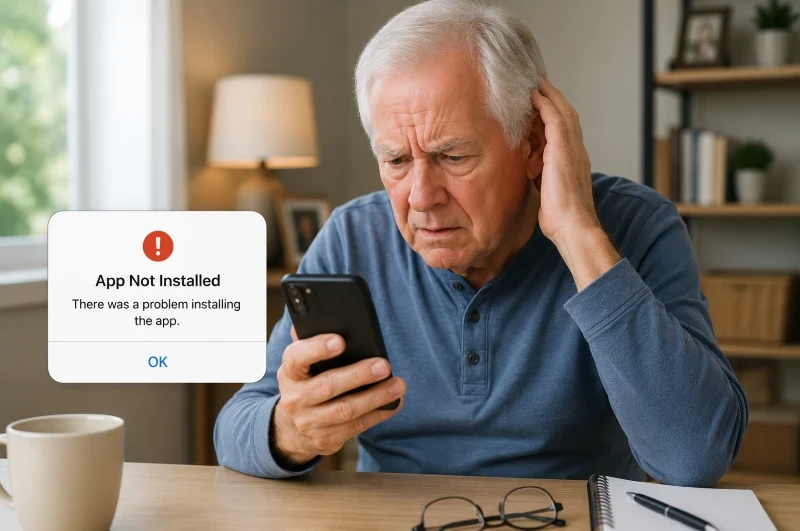
Downloading a new app should be straightforward, but installation issues are quite common. Occasionally, an app may not download at all, freeze partway through, or show an error message. Typically, these problems are due to insufficient storage, internet connection issues, or account configurations, rather than a faulty device.
Common causes
- The device is not connected to the internet.
- Storage space is running low.
- The app is not compatible with the device.
- Software updates are missing.
- There is a problem with the Apple ID or Google account.
What to do
- Confirm that your device is connected to Wi-Fi or cellular data.
- Check that you have enough free storage space.
- Restart the device and try downloading the app again.
- Install any available software updates.
- Sign out and back into your Apple ID or Google account if the problem persists.
Pro Tip:
Download apps exclusively from official sources like the Apple App Store or Google Play Store. Steer clear of third-party sites that might host unsafe or fake apps.
Confusing Software Updates
Software updates enhance security, fix bugs, and introduce new features, but they can also be frustrating. Menus might look different, familiar buttons could be relocated, and new notifications might make it seem as if the device has completely changed overnight. Post-updates boost performance rather than complicate device usage.
Common causes
- Updates change the appearance of apps and menus.
- New features introduce unfamiliar settings.
- Automatic updates occur without warning.
- Older devices may respond differently after an update.
- Important changes are easy to overlook.
What to do
- Read the update notes before installing major updates when possible.
- Give yourself time to explore any new layouts or features.
- Restart the device after updating.
- Ask a family member or trusted friend for help if something looks unfamiliar.
- Search the manufacturer’s support page if you cannot find a setting that has moved.
Pro Tip:
Most software updates mainly bring aesthetic changes. The features you rely on daily typically remain accessible, even if their placement has shifted.
Forgotten Passwords
Forgetting passwords is a common issue among seniors. Given the many websites, apps, and online accounts that need login details, it’s easy to forget usernames and passwords. Luckily, most accounts offer secure methods to regain access.
Common causes
- Using different passwords for multiple accounts.
- Rarely log in to certain websites.
- Changing passwords and forgetting to update records.
- Relying solely on memory.
- Losing written notes containing account information.
What to do
- Use the “Forgot Password” option to reset your account.
- Create strong but memorable passwords.
- Keep a written record of passwords in a secure location or use a reputable password manager.
- Enable two-factor authentication for important accounts.
- Avoid sharing passwords with strangers or responding to requests sent by email or text messages.
Pro Tip: You don’t have to memorize dozens of passwords. Using a secure password manager or keeping a carefully stored notebook can simplify account access and help avoid frustration.
Scam Emails and Fake Pop-Ups
Scam emails and fake pop-ups induce panic and deceive individuals into sharing personal details or installing malicious software. They commonly assert that your computer is infected, your bank account is at risk, or urgent action is necessary. Luckily, recognizing warnings becomes easy once you’re familiar with the signs.
Common causes
- Clicking on suspicious links or attachments.
- Responding to unexpected emails requesting personal information.
- Visiting unsafe websites.
- Downloading software from unofficial sources.
- Falling for urgent messages designed to create fear.
What to do
- Never click links or attachments from unknown senders.
- Close suspicious pop-up windows without interacting with them.
- Verify emails directly with your bank, healthcare provider, or company if something seems unusual.
- Keep your device and antivirus software updated.
- Report suspicious messages and delete them immediately.
Pro Tip: Reputable companies seldom request passwords, credit card details, or Social Security numbers via email or pop-up ads. If unsure, reach out to the organization directly via its official website or by phone.
Smartwatch Won’t Sync With the Phone
Smartwatches connect with smartphones, but sometimes connection issues can stop health data, notifications, or calls from syncing correctly. Usually, these problems are due to Bluetooth settings or temporary software glitches rather than a defective device.
Common causes
- Bluetooth is turned off.
- The smartwatch is too far from the phone.
- One of the devices has a low battery.
- Software updates are missing.
- The Bluetooth connection needs to be reset.
What to do
- Make sure Bluetooth is enabled on both devices.
- Place the smartwatch close to the phone and ensure both are charged.
- Restart the smartwatch and the phone.
- Install any available software updates.
- Remove the old pairing and reconnect the devices if the problem persists.
Pro Tip: Regularly updating the companion app helps prevent syncing problems and keeps health and activity data accurate.

Medical Alert Device Won’t Charge
A medical alert device that won’t charge can be worrisome, especially if you rely on it in an emergency. Luckily, charging problems usually stem from basic issues with the battery, charging cable, or dock, rather than a faulty device.
Common causes
- The charging cable or dock is not connected properly.
- Dust or debris is blocking the charging contacts.
- The power outlet is not working.
- The battery has reached the end of its lifespan.
- The device has not been placed correctly on the charging cradle.
What to do
- Make sure the charging cable and power adapter are securely connected.
- Verify that the electrical outlet is working by testing another device.
- Clean the charging contacts gently with a soft, dry cloth.
- Reposition the device on the charging dock and confirm that the charging indicator appears.
- Contact the manufacturer if the battery no longer holds a charge or the device fails to power on.
Pro Tip: Charging your medical alert device at the same time each day helps prevent unexpected battery issues and ensures assistance is always accessible when needed.
Check out our guide to Smart Wearable Medical Alert Systems if you’re interested in wearable emergency devices or want to learn how they work.
Tips to Prevent Future Tech Issues
A few simple habits can prevent tech issues early on. Being proactive saves time, reduces stress, and extends your devices’ lifespan.
Common causes of future failure
- Overloaded device memory: Leaving devices on for months without a break.
- Ignored software alerts: Skipping updates that fix known glitches.
- Critically low batteries: Letting devices die completely damages battery health.
- Cluttered storage drive: Filling up your device with old files slows it down.
What to do
- Reboot every week: Restart your devices regularly. This clears temporary files and minor glitches.
- Accept software updates: Install updates promptly. They contain vital security patches and performance fixes.
- Charge early: Keep devices charged. Avoid letting your smartphone, tablet, or medical alert device drain completely.
- Clean out old files: Free up storage space periodically. Delete unused apps to keep things running smoothly.
- Keep a physical logbook: Write down important information. Keep a secure, paper record of passwords and account details.
- Stay alert online: Avoid clicking links or downloading attachments from unknown emails and pop-up messages.
Pro Tip:
You don’t need to master all the technology immediately. Focusing on one small feature at a time helps build confidence. Progress gradually, step by step.
Common Tech Issues Seniors Face FAQs
Why do older adults face more challenges with technology?
Technology has grown more complex, with modern devices relying on Wi-Fi, Bluetooth, apps, and regular software updates. Small text, hidden menus, and shifting interfaces can make devices more difficult to use. Luckily, most problems stem from simple setting issues rather than hardware failures.
What is the most frequent technology problem encountered by older adults?
Internet connectivity issues are among the most common problems. Frustrations often arise from weak Wi-Fi signals, Bluetooth pairing failures, forgotten passwords, and limited storage space.
How frequently should I restart my phone, tablet, or computer?
Restarting your devices weekly is generally sufficient to clear temporary files, enhance performance, and resolve minor software glitches. A quick restart often fixes common problems early, preventing them from escalating.
Is it advisable to install software updates immediately?
Updates frequently include essential security enhancements and bug patches. If you’re wary of significant changes, consider waiting a few days and reviewing the release notes before installing the update.
What action should I take if I forget my passwords?
Most websites and apps have a “Forgot Password” feature that lets you securely recover access. Storing passwords in a secure notebook or using a trusted password manager can also help prevent future issues.
How can you identify whether an email or pop-up message is a scam?
Be careful with messages that generate a sense of urgency, ask for personal details, or include suspicious links. Reputable companies seldom request passwords or financial data via email. If you’re unsure, reach out to the organization directly through its official website or phone number.
When is it better to replace a device rather than repair it?
If your device no longer gets software updates, frequently freezes, experiences serious battery issues, or repair costs nearly match the price of a new device, it might be time to upgrade.
Final Thoughts
Tech problems are common in modern life, and even seasoned users face glitches. Fortunately, most issues stem from simple causes such as misconfigured settings, outdated software, or temporary connectivity issues, rather than hardware failures.
Common reasons technology feels frustrating
- Expecting perfection: Devices occasionally need updates, restarts, and maintenance.
- Fear of making mistakes: Many people worry that a single wrong click could permanently damage something, but most issues are easily reversible.
- Feeling alone: Software updates and error messages can make it seem like you’re the only person experiencing a problem, but these situations are common.
What to do
- Start with simple troubleshooting: a restart or a settings check can solve many issues.
- Build confidence gradually: Solving small problems yourself can make technology easier and less intimidating.
- Develop good habits: Regular updates, weekly restarts, and consistent charging can prevent many headaches.
- Ask for help when needed: Family members, friends, and customer support teams are valuable resources.
Pro Tip: Technology aims to simplify life. Mastering simple troubleshooting skills and approaching problems gradually can boost your confidence and independence when using devices.