
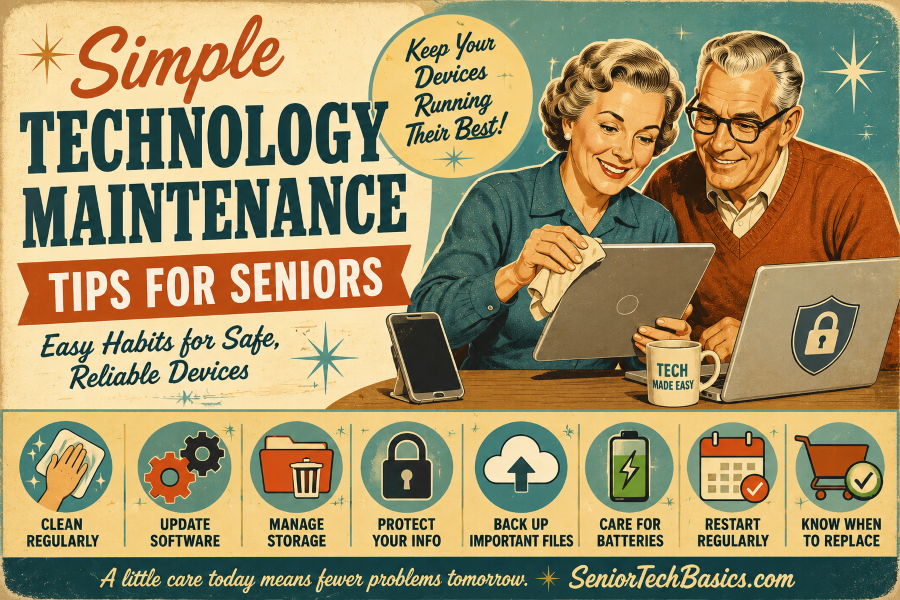
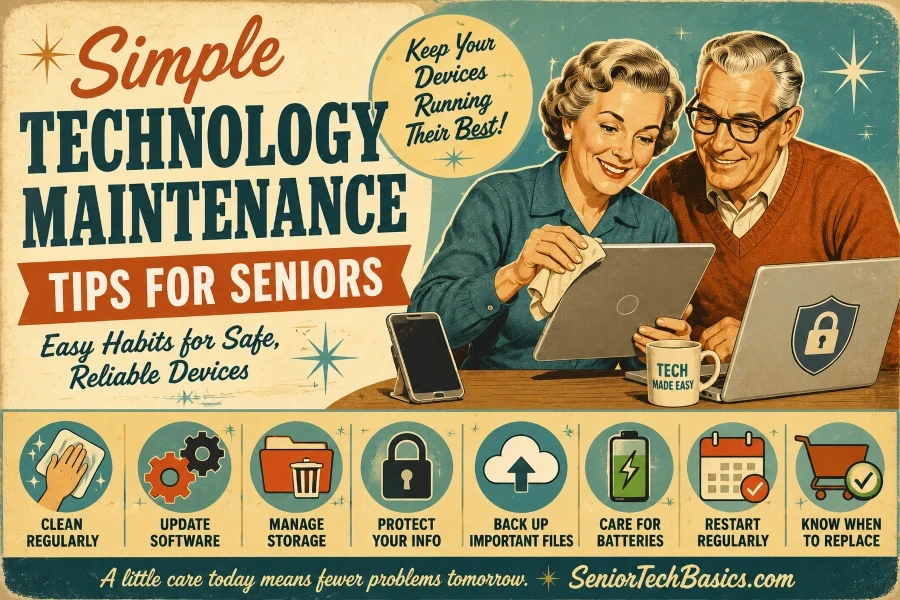
Technology makes life easier, until it slows down or glitches. Whether you rely on a smartphone, tablet, laptop, or medical alert device, a little routine care goes a long way. It keeps your devices fast, secure, and running like new.
The best part? You don’t need to be a tech genius. Most of these habits take just a few minutes and can spare you major headaches, such as dead batteries or frozen screens.
Here’s a straightforward guide to safely cleaning your screens, extending battery life, decluttering your digital space, and maintaining your devices’ performance over the years.
Why Technology Maintenance Matters
Maintaining your tech goes beyond cleaning the screen. Regular upkeep prevents minor issues from becoming costly problems. Just a few minutes each month can save you time, money, and serious frustration.
Here’s what you’ll receive from it:
- Faster speeds: No more staring at frozen screens or endless loading wheels.
- Longer-lasting gadgets: Proper care delays the need to buy pricey replacements.
- Tighter security: Updates patch up holes that hackers use to steal personal data.
- Fewer tech headaches: You will deal with way fewer crashes and random glitches.
- Cheaper upkeep: Catching a small software issue now prevents a costly repair trip later.
Technology Maintenance Tips For Seniors
Keep Your Devices Clean
Dust, fingerprints, and pocket lint not only make your device look messy but can also block your charging ports, speakers, and buttons. Regular cleaning ensures everything functions properly.
- Turn it off first: Always shut down and unplug your device before cleaning.
- Use microfiber: Wipe screens with a soft, lint-free cloth. Avoid paper towels, which can scratch.
- Dampen, don’t drench: Never spray liquid directly onto the device. Lightly moisten the cloth if needed, keeping moisture away from openings.
- Skip harsh chemicals: Avoid bleach or ammonia. Apple and other manufacturers warn that these strip away protective screen coatings.
- Do it weekly: Give high-touch items like phones, tablets, and smartwatches a quick wipe.
Apple recommends cleaning electronic devices using a soft, lint-free cloth and avoiding harsh chemicals and excess moisture.
Keep Your Software Up to Date
Software updates do more than just add shiny new features. They fix annoying bugs, speed things up, and patch security holes that put your personal data at risk. Regular updates are the easiest way to keep your devices secure.
- Turn on automatic updates: Let your phone, tablet, or computer handle the work for you overnight.
- Update your apps: Check your official app store regularly to keep your apps up to date.
- Restart when prompted: Reboot your device after a major update to finish setup.
- Ditch old apps: Delete anything you don’t use, especially if the developer stopped updating it.
- Don’t hit “remind me later”: Device makers release updates to protect you from new cyberthreats. Delaying them leaves your personal info exposed to bugs and hackers.
Protect Your Battery
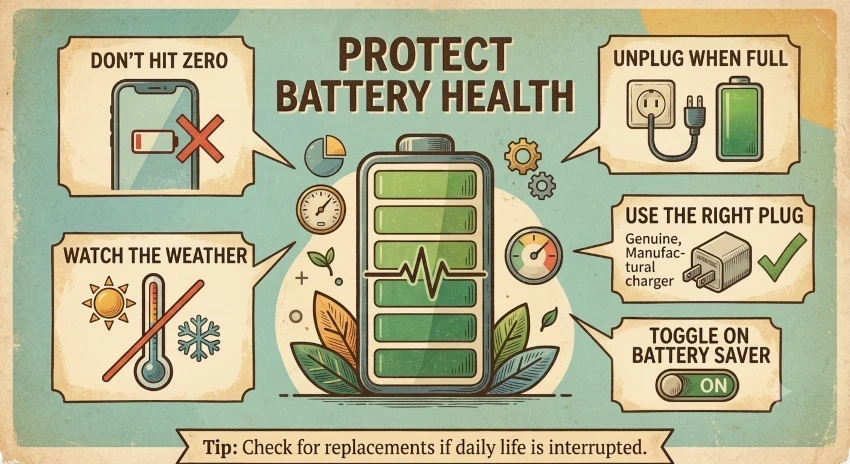
A healthy battery helps your device last all day and delays costly replacements. While batteries naturally degrade over time, maintaining a few simple habits can significantly extend their lifespan.
- Avoid letting the battery drain to 0% regularly.
- Unplug your device once it’s fully charged, rather than leaving it connected for days.
- Keep devices away from extreme heat or freezing temperatures, which can permanently damage the battery.
- Use the charger the manufacturer recommends whenever possible.
- Turn on battery-saving features if you don’t need maximum performance.
- Replace it if your device’s battery no longer lasts through normal daily use.
The Federal Trade Commission advises that using manufacturer-approved chargers and shielding devices from extreme temperatures can enhance battery safety and extend battery lifespan.
Manage Your Storage Space
Over time, your photos, videos, apps, and old downloads accumulate quietly. When your device becomes too full, it slows down significantly. A device that is at full capacity will struggle to install updates, run slowly, and display “Out of Memory” warnings.
Maintaining sufficient free space is essential not just for organization, but also for ensuring your devices function properly.
- Ditch unused apps: Delete the programs you haven’t opened in months.
- Declutter your gallery: Scroll through and delete blurry photos and duplicate videos.
- Empty the trash: Don’t forget to clear the Recycle Bin or Trash folder regularly.
- Purge old downloads: Review and delete outdated PDF files and other unnecessary downloads.
- Relocate important files: Move your favorite photos and vital documents to a trusted cloud service (such as Google Drive or iCloud) or to an external storage device. This frees up space and serves as a backup.
- Set a check-up reminder: Check your available storage every few months to catch potential problems early.
Your operating system requires that space to perform essential updates and temporary tasks smoothly. Staying organized also helps you spend less time searching for important documents.
Want to better understand terms like cloud storage, downloads, or operating systems? Check out our Guide to Technology Terms for Seniors for clear explanations of common technology terms.
Don’t Forget to Back Up
You can lose photos, important documents, or contact lists quickly if your device is lost, stolen, or suddenly malfunctions. Regular backups ensure you can recover everything smoothly, avoiding the pain of starting from scratch.
- Go automatic: Turn on cloud backups so your device saves your data automatically.
- Use physical copies: Save a second copy of precious photos and files to an external hard drive or a USB flash drive.
- Secure your contacts: Back up your address book so you never lose phone numbers or email addresses.
- Do a quick check-up: Check periodically to make sure your backups are working.
- Separate your data: Keep at least one backup physically separate from your primary device.
- Follow the two-copy rule: Always have more than one copy of your vital files. If one backup fails, you have a safety net.
The Cybersecurity and Infrastructure Security Agency advises that performing regular backups is your strongest safeguard against hardware failures, accidental data loss, and malicious cyber threats such as ransomware.
Use Strong Passwords and Security Features
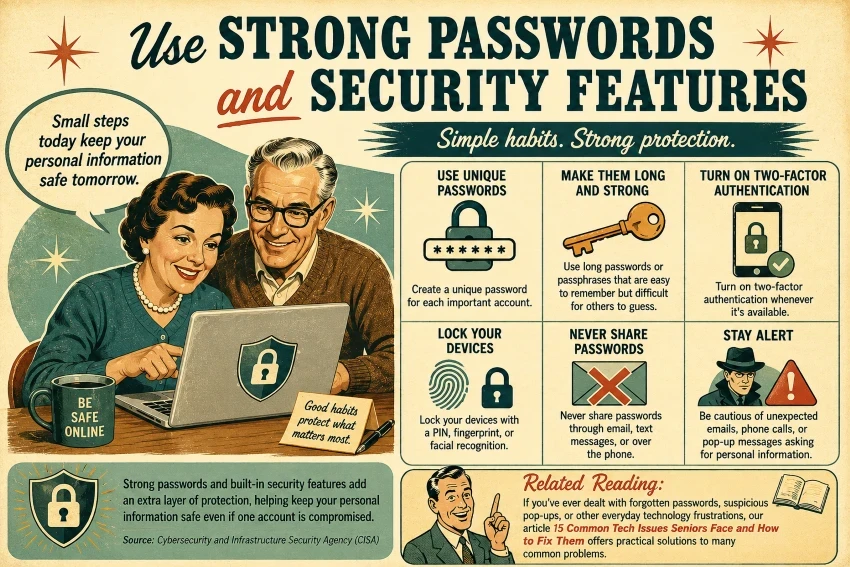
Keeping your devices secure is just as important as keeping them running well. Weak passwords and disabled security features make it easier for scammers and cybercriminals to steal your personal data.
- Create a unique password for each important account.
- Use long passwords or passphrases that are easy for you to remember but difficult for others to guess.
- Turn on two-factor authentication whenever it’s available.
- Lock your devices with a PIN, fingerprint, or facial recognition.
- Never share passwords through email or text messages.
- Be cautious of unexpected emails, phone calls, or pop-up messages asking for personal information.
Having trouble with forgotten passwords, suspicious pop-ups, or frustrating tech glitches? Discover simple, effective solutions in our guide to the 15 Common Tech Problems Seniors Encounter and How to Resolve Them.
Restart Your Devices Regularly
Many users never shut down or restart their smartphones, tablets, or computers. As a result, temporary files accumulate, background apps consume memory, and the device gradually becomes slower.
A quick restart removes digital clutter, stops hidden background processes, and lets important system updates finish installing.
- Do a weekly reboot: Restart your smartphone or tablet at least once a week to keep it fresh.
- Finish updates: Always restart your computer right after installing software updates.
- The first line of defense: If your device suddenly freezes or gets sluggish, try a quick restart before trying anything else.
- Sleep mode isn’t enough: Don’t confuse “putting your screen to sleep” with a full restart—only a true reboot completely refreshes the operating system.
- Skip technical support: A quick restart fixes most minor performance glitches, making it the easiest maintenance habit you can adopt.
Know When It’s Time to Replace Your Device
Even the best-maintained gadgets don’t last forever. Over time, they slow down, lose security updates, and can’t run the latest software. Knowing when to upgrade helps you save time and money and avoid tech issues.
- No more updates: Your device stops receiving vital software and security patches.
- Dead battery: The battery drains completely after just a few hours of normal daily use.
- Constant crashes: Your apps frequently freeze, crash, or refuse to open.
- Permanent slowdown: The system remains painfully slow, even after a fresh restart and clearing out storage.
- Costly repairs: Fixing a broken screen or part costs nearly as much as buying a newer model.
- Lost features: Tools or apps you rely on every day are no longer supported.
Upgrading doesn’t require purchasing the most expensive, latest model. Often, the best choice is a dependable, easy-to-use device that comes with assured long-term software support.
Experiencing hand stiffness while using technology? Check out the review of the 5 Best Hand Massagers for Seniors with Arthritis.
Quick Tech Maintenance Checklist
Follow this straightforward monthly checklist to ensure your devices operate efficiently and securely.
- Clean up: Wipe screens, keyboards, and charging ports with a dry microfiber cloth.
- Update: Install the latest software and app updates.
- Reboot: Restart all your devices.
- Purge files: Delete unused apps, duplicate photos, and unnecessary downloads.
- Check space: Verify you still have plenty of free storage space.
- Back up: Secure your important photos, documents, and contact lists.
- Double-check safety: Review your passwords, screen locks, and security settings.
- [ ] Monitor power: Charge properly, avoid extreme temps, and check battery health.
- Verify backups: Make sure your automatic cloud backups are actually working.
- Evaluate: Identify any outdated devices that no longer receive security updates and plan for replacements.
Tech Maintenance FAQs
How often should I clean my electronic devices?
Clean your smartphone, tablet, and keyboard weekly with a dry microfiber cloth, avoiding harsh chemicals that can damage screen coatings.
How often should I install software updates?
Install them now and enable automatic updates to keep your devices secure and running smoothly, with minimal hassle.
Can I leave my phone charging overnight?
Modern phones stop charging at 100%, so it’s generally safe. Still, unplug the device once it’s full and avoid extreme heat to help prolong battery life.
How much free storage should I keep on my device?
Keep 10%-20% free storage space to let your operating system process updates and run efficiently.
How can I back up my photos and documents most simply?
Automatic cloud backups offer the simplest, set-and-forget solution. For added security, ensure you copy important files to a USB drive or external hard drive.
How often should I restart my smartphone or computer?
Reboot your devices at least once a week to clear out digital clutter, close hidden apps, and fix minor glitches.
How do I know when it’s time to replace a device?
Upgrade your device if it no longer receives security updates, the battery lasts only a few hours, performance becomes painfully slow, or repair costs are too high.
What is the most crucial habit for maintaining technology?
Keeping your software updated is essential. It protects against security threats, fixes bugs, and maintains optimal performance.
Final Thoughts
Regular monthly maintenance keeps your tech in top condition. Spending a few moments on simple tasks, such as cleaning screens, updating software, deleting unused files, and verifying backups, can prevent annoying technical issues.
Whether you’re using a smartphone, laptop, tablet, or medical alert device, establishing a regular checkup routine extends your devices’ lifespan. These simple steps help ensure your technology remains safe, reliable, and ready whenever you need it.