
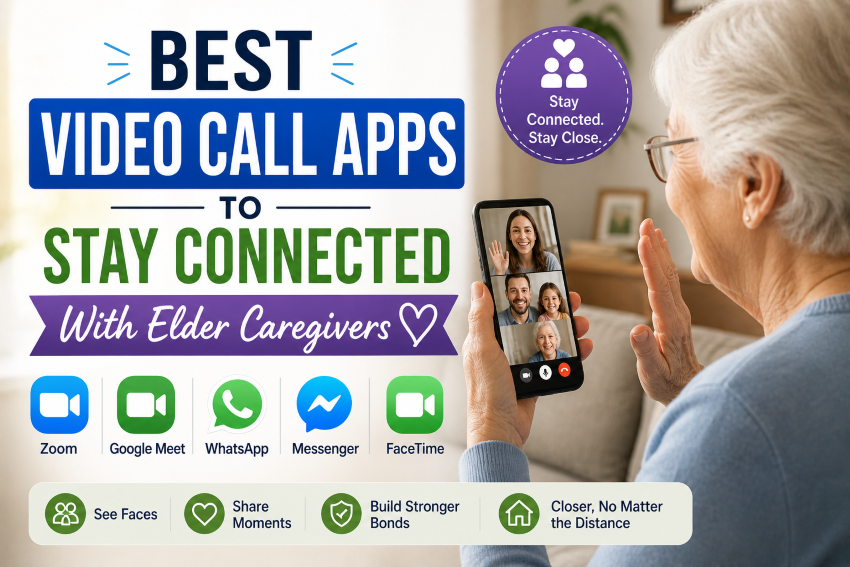
Video call apps offer a lifeline for support, companionship, and peace of mind, whether you are a family member checking in from across town or a professional caregiver managing daily care remotely.
Regular face-to-face contact, even through a screen, can help seniors feel less isolated and improve their emotional well-being. At the same time, video calls enable caregivers to monitor health, coordinate care, and provide reassurance between visits.
However, some video call apps can be too complex for older adults, while others lack the features that caregivers need.
That’s why we’re sharing comprehensive content on the best video calling apps for elder care, helping elders stay in touch with loved ones and care teams.
This guide includes easy-to-use tools that simplify communication, reduce stress, and help seniors feel more connected, wherever life takes them.
Why Video Calling Matters in Elder Care?
Staying socially connected becomes more complex as we age, especially for individuals who live alone or rely on caregivers. These individuals may find video calling a powerful tool for enhancing their emotional well-being and the quality of care.
Emotional and Cognitive Benefits.
Video interactions can reduce loneliness and may even help slow cognitive decline in older adults. A face-to-face chat with a familiar voice, even through a screen, typically lifts a senior’s mood, reduces anxiety, and brings a sense of normalcy and routine.
A 2022 study published in Frontiers in Public Health found that video calls during the pandemic improved mental health and reduced loneliness among older adults.
Better Caregiver Coordination.
Not only do video calls allow caregivers to say hello, especially those long-distance ones, but they also enable them to check for signs of fatigue, illness, or emotional distress that may not be apparent in a text or voice call.
Caregivers can also use video calls to:
- Review medications together and remind seniors of appointments.
- Monitor home safety or living conditions.
- Coordinate with family members or medical teams.
Many seniors can now use a smartphone, tablet, or smart TV to join calls with just one tap without prior knowledge, making technology feel less intimidating and more empowering.
Key Features to Look for in a Video Call App for Elder Care.
The following features can make all the difference when selecting an app for a tech-savvy elder or a newbie with limited digital experience.
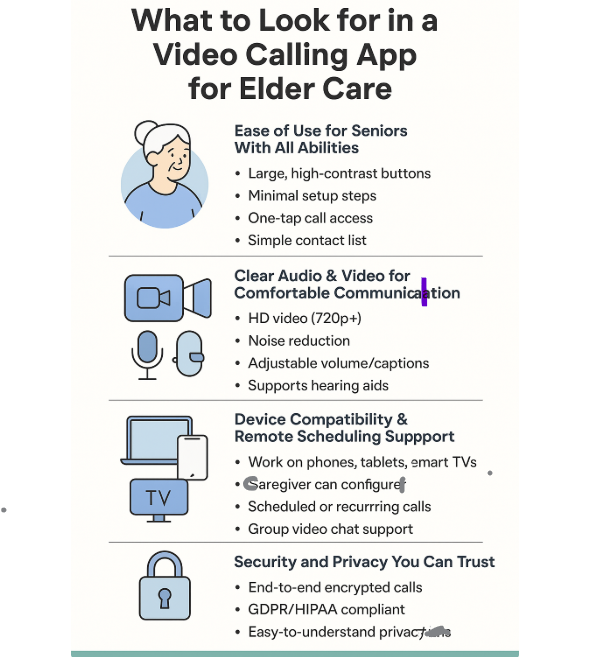
Easy-to-use interface.
Older adults often have dexterity, vision, or memory challenges and need user-friendly apps featuring:
- Large, clearly labeled buttons.
- High-contrast visuals for better readability.
- Minimal steps to start or answer calls.
- Tools that let caregivers pre-program contacts or set up shortcuts.
Apps that feel “cluttered” or require account creation and password management can quickly discourage use, so look for simple platforms.
Audio-Visual Quality.
Poor call quality often frustrates seniors, especially those with hearing or vision impairments, and their caregivers.
A strong app should include:
- At least 720p video resolution without frequent lag.
- Noise suppression and echo cancellation for clearer audio.
- Adjustable volume and text settings.
- Optional captioning or transcription support for hard-of-hearing users.
These features make calls more enjoyable and effective.
Multi-Device Compatibility and Caregiver Scheduling Tools.
Flexibility is essential when connecting with caregivers and family members from different locations and devices.
An ideal app should:
- Work seamlessly across smartphones, tablets, laptops, and smart TVs.
- Support scheduled or recurring video calls to help establish routines.
- Provide one-tap access for seniors with limited tech confidence.
- Offer remote setup features that enable caregivers to configure devices perfectly.
A suitable app should also allow multiple participants to join the same call for group check-ins or virtual family gatherings.
Related Content: Best Guided Meditation Apps for Stress Relief in Seniors.
Privacy and Security: Protecting Sensitive Information.
Caregiving conversations typically include health, medication, or emotional concerns, making it essential to choose a platform with:
- Uses end-to-end encryption.
- Meets GDPR or HIPAA standards.
- Doesn’t store call data or personal conversations.
- Features clear, senior-friendly privacy policies.
Caregivers need to feel confident that their conversations and those they care about stay perfectly safe.
Top Video Call Apps to Stay Connected With Elder Caregivers.
The best apps should balance simplicity, functionality, and reliability, helping elders, caregivers, and loved ones stay in touch stress-free and without confusion.
Below are the top video call apps carefully curated for elder care, featuring unique and beneficial features.
Zoom.
Zoom features a simple interface, especially on tablets, making it an excellent choice for older adults for video group calls and conferencing, which suits family check-ins or care team meetings.
Pros.
- Supports multiple participants.
- Ideal for audio and video quality calls.
- Enables screen sharing to show documents or provide medication instructions.
- Best for coordinating caregivers and family video calls.
Cons.
- Initial setup can confuse some users.
- Too many confusing features for low-tech users.
Pricing.
- The free plan includes unlimited one-on-one calls and group calls lasting up to 40 minutes.
- Paid plans start at $14.99/month.
Tip: The Free version suits most elder care.
You can also check out our guide to the best neck and shoulder massagers for seniors to relieve tension, ease muscle pain, and improve daily comfort at home.
WhatsApp.
Most seniors and caregivers use WhatsApp for texting, and this app also offers an easy-to-use video call feature that works seamlessly across smartphones and tablets.
Pros.
- One-tap video calls.
- End-to-end encryption.
- Widely available and familiar.
- Best for quick caregiver check-ins and one-on-one calls.
- Completely free, no subscription or in-app purchases.
Cons.
- Requires a smartphone.
- Doesn’t feature screen sharing or group scheduling.
Skype.
Skype has been around for years and offers video call features that work with smart TVs and desktop computers, making it more accessible to seniors who prefer larger screens.
Pros.
- Cross-platform support.
- Works on smart TVs.
- Can call phone numbers as backup.
- Best for seniors using desktop or smart TV setups.
Cons.
- An interface that feels outdated.
- Unpopular among younger family members.
Pricing.
- Free for Skype-to-Skype video and voice calls.
- Paid credits to call landlines or mobile phones.
Tip: Elder care users can stick with the free version.
Google Meet.
Google Meet is a browser-based app that many use alongside Gmail and Google Calendar; you don’t need to install it on your computer.
Pros.
- Doesn’t require installation on desktops.
- Easy to schedule in Google Calendar.
- Excellent security and privacy controls.
- Best for care teams using Google services.
Cons.
- Requires Google account setup.
- Less intuitive for first-time users.
Our guide to the 7 best eye massagers for seniors to help reduce eye strain, relieve tension, and promote relaxation after screen time may also be worth checking out.
JubileeTV or ONSCREEN.
JubileeTV and ONSCREEN are senior-specific video calling platforms with large fonts, TV-based interfaces, and no passwords.
Some models even let caregivers initiate calls remotely, which is especially helpful for seniors with cognitive challenges or dementia.
Pros.
- Built for older adults.
- Remote caregiver control.
- Works through the TV and doesn’t require a phone or tablet.
- Best for seniors with cognitive or physical limitations who prefer non-phone options.
Cons.
- May require special hardware.
- Unavailable in some regions.
Pricing.
- Requires buying a hardware device at approximately $99–$149.
- Subscription required for remote management features: $9.99/month.
Note: Prices may vary slightly by country or promotion.
| App | Free use | Best For | Group calls | Remote Setup | Works on TV? | Subscription Needed? |
| Zoom | Free (with limits) | Family check-ins, care team meetings | Yes | No | No | Optional (Pro Plan) |
| Always Free | Quick one-on-one caregiver calls | Limited | No | No | No | |
| Skype | Free (mostly) | Seniors using desktop/TV | Yes | No | Yes (some) | Optional (for phone calls) |
| Google Meet | Free (Gmail) | Android/Gmail users | Yes | No | No | Optional (Google Workspace) |
| JubileeTV / ONSCREEN | Hardware + subscription | Seniors with dementia or mobility issues | Yes | Yes | Yes | Yes ($9.99/mo) |
Tips to Help Seniors Use Video Calling Apps Effectively.
Even the most user-friendly app can overwhelm you if you are unfamiliar with technology. Still, you can use practical tips to embrace video communication straightforwardly.
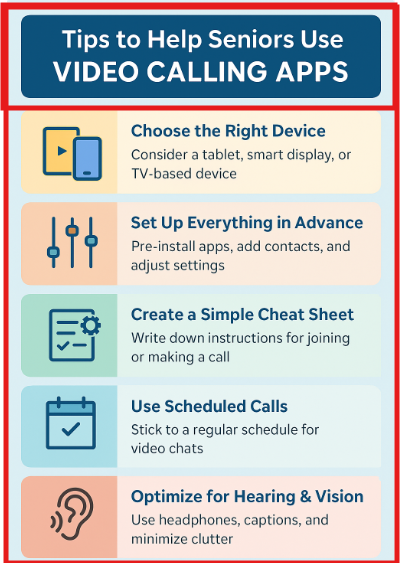
Choose a comfortable device.
If you’re uncomfortable with smartphones, consider alternatives like an easy-to-hold tablet with a larger screen or a Smart Display like the Echo Show.
Smart TV apps, such as JubileeTV, are also an excellent choice if you watch TV daily. Select options that integrate smoothly into your routine whenever possible.
Adequate Setup.
It is always better to pre-install apps and create shortcuts or bookmarks for easy future use.
For example, you can set up auto-login to skip password prompts, add family or caregiver contacts with recognizable names and photos, and adjust font size or brightness for better readability.
Some devices and apps also allow remote configuration for a perfect long-distance setup, or you can ask for help if needed.
A Simple “How-To” Cheat Sheet.
You can also create a printed, laminated instruction card, which includes:
- How to start a video call.
- The button to press when answering.
- Troubleshooting tips and more.
Tip: Keep your printed “How-To” Cheat Sheet nearby for easy reference.
Use Scheduled Calls.
Repetition builds confidence, so try to:
- Schedule regular call times, like every Tuesday at 6 p.m.
- Stick with the same app and device.
- Set phone alarm reminders, calendars, or intelligent assistants.
Hearing, Vision, or Cognitive Challenges Optimization.
Seniors with dementia can focus on apps that offer remote control, simple buttons, and visual familiarity, such as TV interfaces.
Make minor but meaningful adjustments, including:
- Headphones to boost clarity.
- Enable closed captions if your device supports them.
- Avoid visually distracting backgrounds.
- Speak clearly and slowly, but don’t exaggerate.
Tip: Learning new technology can be intimidating; stay patient, consistent, and celebrate your progress. Don’t let frustration get the best of you when things go wrong.
You can also explore how the Audien Atom Pro hearing aids work for a simple breakdown of features, benefits, and whether they’re a good fit for seniors.
Common Challenges and How to Overcome Them.
Some older adults still face barriers to consistently using video call apps, even with well-prepared setups.
These challenges include physical, cognitive, or emotional difficulties that caregivers must manage with limited creativity and patience.
Cognitive Impairment or Dementia.
Seniors with memory issues or cognitive decline may struggle to remember how to use the app or feel overwhelmed by the many buttons.
Solutions:
- Use ultra-simplified interfaces, such as JubileeTV or GrandPad, designed for individuals with dementia.
- Stick to one device, one app, and a fixed daily call time to create a routine.
- Enable auto-answer on specific apps or devices to automatically connect calls.
A 2023 study published in the American Journal of Alzheimer’s Disease & Other Dementias found that older adults, with or without dementia, used video calls effectively during the COVID-19 pandemic when provided with adequate support, highlighting the importance of simplicity and caregiver guidance in helping seniors adopt technology.
Poor Internet Connection.
Unstable video or audio can quickly frustrate older users and lead them to stop using the app entirely.
Solutions:
- Switch to low-bandwidth settings in the app under “video quality”.
- Use an Ethernet connection whenever possible for improved stability.
- Consider a mobile data plan with a 4G or 5G hotspot if your Wi-Fi is unreliable.
Tech Anxiety or Lack of Confidence.
Seniors often fear breaking or doing something wrong, which can discourage them from trying video calls altogether.
Solutions:
- Offer a no-pressure demonstration first.
- Encourage “practice calls” with family before using the app for caregiving.
- Provide a cheat sheet or laminated guide next to the device.
- Celebrate small wins and offer lots of praise.
Vision or Hearing Limitations.
Small screens or poor audio can frustrate older adults and even make it impossible to use video call software.
Solutions:
- Use devices with larger screens, such as tablets or smart displays.
- Turn on captions or subtitles on Zoom, Google Meet, or Skype.
- Increase font sizes, brightness, and volume.
- Try headphones or speakers for hearing-impaired users.
Limited Mobility or Dexterity.
Arthritis or Parkinson’s disease can make it hard to tap buttons or hold a phone steady.
Solutions:
- Use tabletop stands or voice-activated devices, such as the Echo Show or the Google Nest Hub.
- Choose apps with one-tap calling and larger on-screen buttons.
- Consider remote caregiver tools that enable setup and call initiation from a distance.
Summary: Anticipating these common issues and offering practical workarounds enables you, as a caregiver, to turn frustrating tech into a meaningful communication tool. Adapting the technology to the user is the key.
Final Thoughts.
The right video call apps typically make communication straightforward for long-distance family members, professional caregivers, or seniors who are not tech-savvy.
Choose simple-to-use tools that meet older adults’ individual needs, without compromising privacy, to support emotional well-being and effective caregiving.
Remember that good technology can’t replace human connection in improving the daily lives of those you care about.
Many, including caregivers, seniors, bloggers, and tech enthusiasts, also use affiliate marketing to build flexible, meaningful online businesses in their chosen niches.
You can learn how to build a website step-by-step, choose a niche, and monetize your blog or website with trusted affiliate programs, ads, and more, but an online business is not a get-rich-quick scheme. Stay consistent, dedicated, and patient to build a sustainable income online over time.