
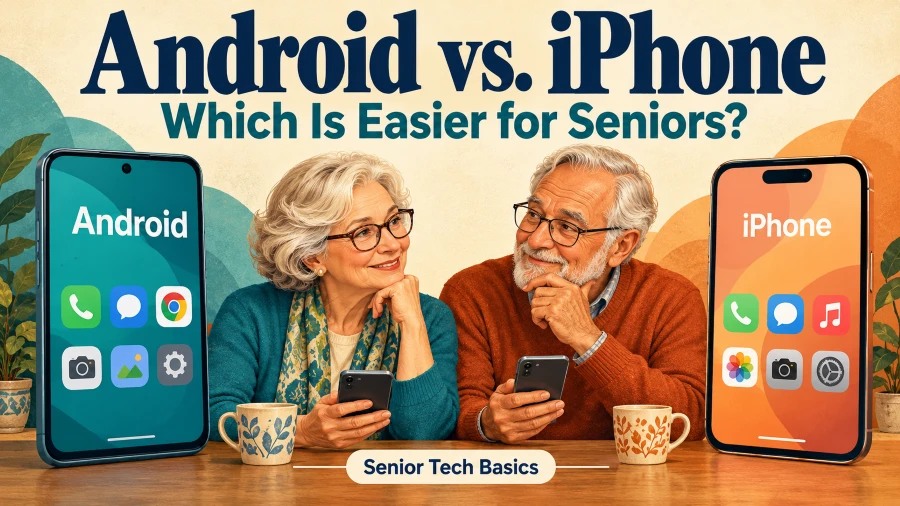
For seniors, an iPhone is often easier if you want a consistent interface and have family who know Apple devices. Android is often the better fit if you want more choice in price, size, and design. Neither wins for everyone, so try everyday tasks on both before you buy.
This guide compares Android and iPhone for everyday tasks, including calls, messages, video chats, and screen adjustments for comfortable reading. We will also review the accessibility, safety, software support, and cost to help you choose a phone that suits your needs or those of an older family member.
Android vs. iPhone for Seniors: Quick Comparison
iPhone models work much the same from one to the next, so once you learn one, you can use any of them. Android phones come in many more styles and price points, and you can customize how they look and function. Neither type is easier for everyone. The best choice depends on the specific phone and what you want to use it for.
| What matters to you | iPhone | Android |
| Everyday navigation | Similar menus and controls across iPhone models. | Menus and controls vary between brands, such as Samsung and Google. |
| A simpler screen | Assistive Access offers a simplified interface designed for people with cognitive disabilities. | Some phones offer simplified layouts, such as Samsung’s Easy Mode. |
| Comfortable reading | Text and display adjustments can make content easier to see. | Font and display-size adjustments are available, although settings vary by phone. |
| Calls and video chats | Supports regular calls and popular communication apps, alongside FaceTime. | Supports regular calls and popular communication apps; included apps vary by brand. |
| Budget | Compare new, older, and refurbished models. | Offers a wider range of brands and price points. |
| Software support | Check whether the particular iPhone still receives updates. | Check the manufacturer’s update commitment for the exact model. |
| Help from family | A practical choice when your trusted helper knows iPhone well. | A practical choice when your helper knows your Android brand well. |
Apple’s Assistive Access simplifies supported apps with larger controls and fewer choices, while Samsung’s Easy Mode mainly provides a simpler layout with larger icons, text, and spacing.
Before buying, try three everyday tasks: call a contact, read a message, and take a photo. Check whether the screen, controls, and phone size feel comfortable to use.
Do Older People Prefer Android or iPhone?
Some surveys indicate that more older people use Android phones, but that doesn’t mean every senior prefers Android or finds it easier. In the UK, Ofcom’s Online Nation 2025 report found that 57% of smartphone users aged 65 and over mainly used an Android phone, while 41% mainly used an iPhone. These figures reflect ownership in one country only. They don’t tell us what people prefer worldwide.
Consider what makes a phone comfortable to use for your own choice:
- Familiarity: Sticking with a platform you know can reduce what you need to relearn.
- Budget: Compare phones in your price range, and check how long each will keep receiving updates.
- Family support: A family member who knows your phone’s system can help more easily.
- Individual needs: Readability, comfortable controls, and helpful accessibility settings matter more than popularity.
Also consider long-term upkeep. Both platforms send software updates, so switching won’t end the update notifications. Our guide to why your phone keeps asking you to update explains how to handle those prompts safely.
So the better question is: which phone can you use comfortably and keep supported for years?
Which Is Easier to Learn and to Navigate?
The easier phone to learn is usually the one whose controls feel familiar. iPhone offers a consistent interface across models, while Android offers more flexibility, though menus and settings vary by manufacturer.
Everyday Navigation and Settings
On iPhone, the skills you learn to open apps, check notifications, and change settings carry over to other recent models. Transitioning from an older Home button model to gesture navigation can still take some practice.
On Android, the experience varies by brand and model. A Samsung Galaxy and a Google Pixel both run Android, but their menus, home screens, and included apps differ. Many models let you choose between navigation buttons and swipe gestures.
Try the controls before deciding: Open a message, return to the home screen, adjust the volume, and find a contact. Can you repeat each task comfortably without help?
Simplified Interfaces: Assistive Access and Easy Mode
Both platforms can reduce screen clutter, but their simplified interfaces serve different purposes.
- Apple’s Assistive Access is designed for people with cognitive disabilities, offering larger controls and a focused experience in supported apps. It suits someone who needs a few clearly presented tasks, though a trusted person may need to help with setup.
- Samsung’s Easy Mode offers larger icons, text, and spacing in a simpler home-screen layout, keeping the experience of a conventional smartphone. Check availability on your specific Galaxy model.
Clearing unused shortcuts, keeping essential apps on the first screen, and enlarging text can make a standard layout comfortable. Choose the level of simplification that helps, rather than assuming a senior needs fewer features.
Which Is Easier to See, Hear, and Control?
Both Android and iPhone can be adjusted for easier reading, clearer calls, and comfortable control, so compare specific phones, not brands.
Screen Readability
Both platforms let you enlarge text and on-screen items. When comparing phones, check:
- Text size: Can you read messages without zooming in?
- Screen brightness: Can you see it clearly indoors and in bright sun?
- App layout: Do buttons and labels stay clear and easy to follow at larger text sizes?
- Size and weight: Is a bigger screen still comfortable to hold?
A bigger display gives you more room, but a smaller, lighter phone is often easier to handle.
Clear Calls and Hearing Support
How well you hear a call depends on both the phone and any hearing devices you use. Test them together. When comparing phones, check:
- Call sound: Make a test call and see if you can hear the other person clearly at a comfortable volume.
- Speakerphone: Listen for clear speech without holding the phone to your ear.
- Hearing-aid compatibility: Ask the seller to confirm it works with your exact hearing-aid model.
- Captions: Confirm they cover your language and the calls or videos you actually use.
Bluetooth pairing doesn’t guarantee every hearing-aid feature will work. Automatic captions can also mishear speech, especially in noisy places.
Comfortable Controls
Good controls work the first time, without a struggle.
- Physical buttons: Can you find and press the volume and power buttons easily?
- Touchscreen: Type a quick message and pick a contact. Do taps register the first time?
- Voice commands: Say “call [contact]” or “set a timer.” Does the phone understand you the first time?
- Dictation: Dictate a short message, then fix any mistakes. Is correcting them quick and simple?
- Grip: Test it with the case on. Does it feel secure in your hand?
Want specific models? See our guide to mobile phones for seniors on Visible by Verizon. Check availability and network compatibility before you buy.
Summary: Neither platform wins every category. Pick the phone that fits your hand, shows text clearly, and makes calls easy to hear.
Which One Makes It Easier to Stay in Touch?
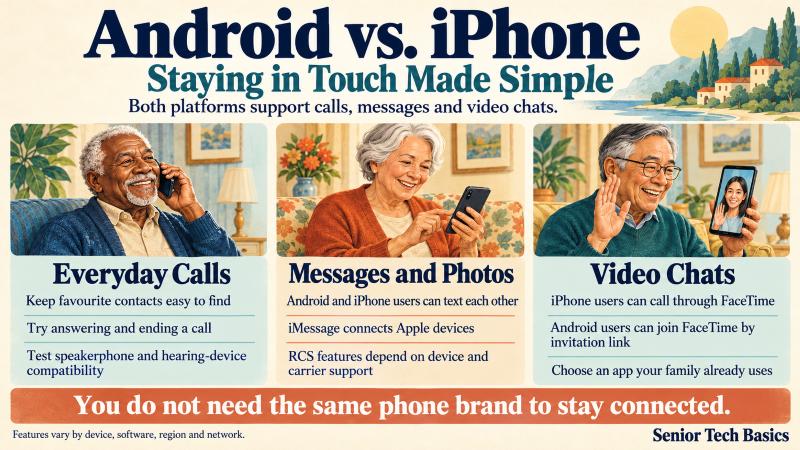
Both Android and iPhone handle calls, messages, and video chats. What matters most is which apps your family uses and how easily you can reach your contacts. You don’t need the same phone brand to stay connected.
Making Everyday Calls
For ordinary phone calls, neither platform pulls ahead. On either phone, check whether you can easily:
- Reach your favorite contacts without scrolling through a long list.
- Answer and end calls with controls that feel comfortable.
- Switch to speakerphone mid-call.
- Spot missed calls and call back quickly.
- Block unwanted callers without missing the calls that matter.
If you use hearing aids or other hearing devices, test a real call before you buy. Our guide to smartphone compatibility with hearing devices shows you how to check call streaming, microphone support, and app compatibility.
Sending Messages and Family Photos
Android and iPhone users can message each other. Which features work depends on the service you use.
- Standard texts: Work between any two phones, whatever the brand.
- iMessage: Apple’s own messaging service, built for chats between Apple devices.
- RCS: Brings higher-quality photos and read receipts to chats between compatible Android phones and iPhones. Whether you get it depends on your carrier, region, and setup.
- Shared messaging apps: An app your family already uses keeps chats together on both platforms, such as Google Messages.
Before you switch, check that your family group chats will still work and that your message history can come with you.
Joining Video Calls
The best video-calling option is usually the one your family already uses.
- If your family uses FaceTime: FaceTime is built in, so you can start and answer calls right from the app.
- If you choose Android: You can still join a FaceTime call through an invitation link in a supported browser, though you can’t start one from an app.
- If your family uses another service: Confirm its app works on both platforms and on the phone you are considering. Apple Support (IE).
Useful tip: Before buying, try a video call with a family member. Make sure you can hear clearly, hold the camera comfortably, and locate the answer, mute, and end buttons.
Safety and Emergency Features Compared
Both iPhone and Android offer emergency tools, but features vary by model, setup, and country. Compare how easily you can get help on each phone rather than assuming one is always safer.
Calling for Help
iPhone offers:
- Emergency SOS: A shortcut to emergency services.
- Emergency contacts: Chosen contacts can be notified after an emergency call, depending on your settings.
- Medical ID: Stores allergies and emergency contacts and can be accessed from the lock screen.
Android phones may offer:
- Emergency SOS: Button shortcuts to start emergency actions.
- Emergency information: Medical details and contacts you can view from the lock screen once set up.
- Additional safety tools: Some devices also offer emergency sharing and scheduled safety checks.
Apple and Google explain the requirements in their guides to iPhone emergency calling and Android emergency features. Android options vary by manufacturer.
Location Sharing and Personal Privacy
Location sharing lets a trusted person find you, once it’s set up and working.
- Share your location only with chosen people, and know when it helps.
- Review permissions together, with the owner’s consent.
- Check connectivity and battery use.
- Know how to stop sharing when you want privacy.
- Update emergency contacts when you change phones.
Location sharing is not an emergency service, and nobody is watching your dot on the map.
How to Stay Safe From Scams
Neither platform makes you immune to scams, so add these habits to any built-in filtering:
- Install phone and app updates when offered.
- Lock your phone with a PIN, password, fingerprint, or face scan in case it’s lost or stolen.
- Never read a code sent to your phone to an unexpected caller.
- If a call or message demands money or personal details, hang up and contact the person or company yourself, using a number you trust.
- Check your unknown-caller settings so important calls still get through.
What to Check Before Buying?
Choose a phone whose emergency controls you can find and understand:
- Can you find the emergency screen fast?
- Can you easily add and update your medical information?
- Will the features you need work where you live?
- Do the advanced features need a specific model or an extra device?
Are you considering a tablet for home use, too? Read our tablet buying tips for seniors, but don’t assume a tablet can make emergency calls like a phone.
Check your emergency settings with the manufacturer’s instructions or demo mode. Never place a live emergency call just to test your phone.
Which Offers Better Value and Support?
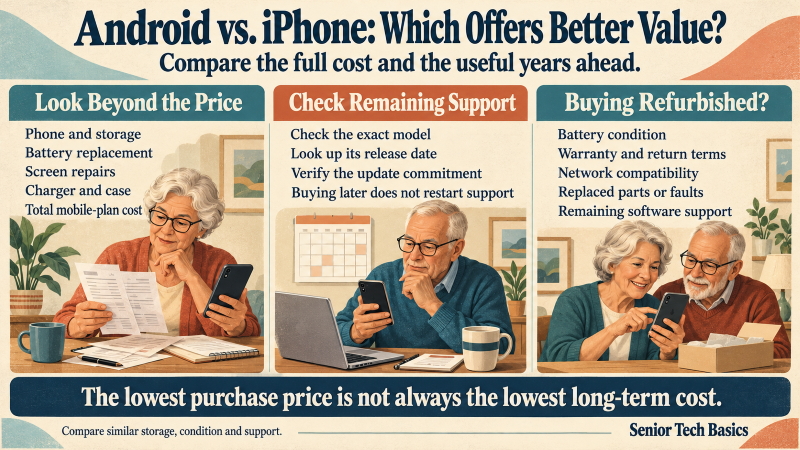
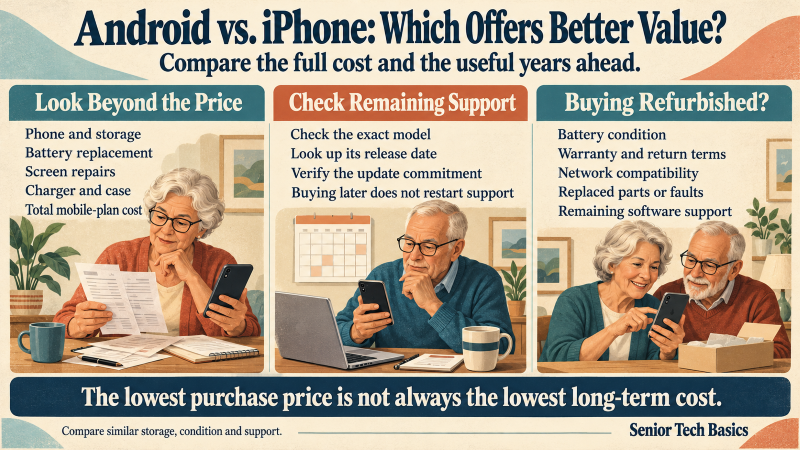
Android usually offers more choice at lower prices, while an older or refurbished iPhone can cut the cost of choosing Apple. The better value is whichever phone meets your needs and stays supported as long as you plan to keep it.
Compare the Full Cost
Look beyond the advertised handset price:
- Purchase price: Compare phones with similar storage and condition.
- Battery replacement: Ask about battery health and replacement costs, especially on refurbished phones.
- Repairs: Check screen-repair prices and local service options.
- Accessories: Add any charger, case, or adapter you’ll need.
- Monthly charges: Compare contract cost with buying separately.
For calls, messages, browsing, and family photos, premium cameras and faster performance rarely justify the extra cost.
Check How Much Software Support Remains
Neither platform automatically wins on longevity. Support depends on the exact model and its release date.
- Google promises seven years of updates for Pixel 8 and later phones, counted from their first availability—not your purchase date.
- Samsung provides up to seven years of security support on selected Galaxy devices; commitments vary by model.
- For an older iPhone, check Apple’s current software compatibility and security-release information. Receiving an occasional security patch is different from supporting the latest iOS version. Pixel Phone Help
A discounted phone that has spent several years on a retailer’s shelf may have less support remaining than its “new” condition suggests.
Are Refurbished Phones Worth It?
A refurbished Android phone or iPhone can be a smart buy, but only if the seller spells out the following:
- Battery health and whether the seller will replace a worn battery.
- A clear warranty and a return window you can actually use.
- Whether the phone is unlocked and will work on your network.
- Any replaced parts or known faults, stated plainly.
- The model’s remaining software support.
Look at the cost per year, not the sticker price. A $400 phone that lasts five years costs $80 a year. A $250 phone you replace after two years costs $125 a year, but the cheaper phone often isn’t the better buy.
Which Phone Is Easier for Family to Help With?
The easiest phone to support is usually the one your helper already knows. An iPhone user will explain iPhone settings with confidence, and a Samsung user will do better with a Galaxy.
The brand matters on Android: instructions for a Pixel may not match those for Samsung or Motorola.
Plan for Help After Setup
Discuss the assistance you are likely to need before choosing:
- In-person help: Will someone sit with you, show you a task, and let you practice it yourself?
- Remote help: Can they walk you through a fix clearly over the phone?
- Written steps: Can they write down a few steps that match your phone?
- Account recovery: Do you know how to get back in if you forget your password?
Helpful tip: Ask your helper to guide you through a task instead of doing it for you. You’ll learn it, and you’ll see where the instructions need to be clearer.
Keep Your Accounts Yours
Let family help, but keep control of your phone:
- Create the phone’s account yourself, using your own Apple or Google login.
- Set recovery details you can actually reach.
- Know exactly what you share and who can see it.
- Never set up your phone on a relative’s personal account, no matter how much faster it seems.
A relative who knows one platform can make either phone easier to live with, but their preference should support your choice, not replace it.
Android or iPhone: Which Should You Choose?
Choose an iPhone if you want a consistent interface and family members who already use Apple. Choose Android if you want more options in price, design, and controls.
| Choose iPhone if: | Choose Android if: |
| You already feel comfortable using iOS. | You already feel comfortable using Android. |
| Your preferred model meets your needs and budget. | You want to compare more brands and price levels. |
| Your trusted helper knows iPhone well. | Your trusted helper knows your chosen Android brand. |
Whichever you pick, check the exact model before you buy. Make sure it runs your essential apps, works with your connected devices, and lasts as many years as you plan to use it. Let your daily needs make the call.