
A smartphone might detect a hearing device over Bluetooth without supporting all its features. Simply pairing doesn’t guarantee that you can stream calls, use hands-free microphone features, or manage settings in an app.
Compatibility varies by phone and hearing-device models, OS versions, firmware, and wireless technology support. Always check the manufacturer’s official compatibility lists and, if possible, test both devices together before buying.
Understand the Main Connection Technologies
Hearing devices often utilize various wireless technologies, but compatibility depends on the model. To access the intended features, both the phone and hearing device need to support the same technology and, in some cases, specific versions of it.
Made for iPhone (MFi)
Made for iPhone allows compatible hearing devices to connect directly to Apple devices that support them. Depending on the model, users can stream calls and media, adjust hearing settings, and use the iPhone as a remote microphone.
Some combinations enable two-way audio for hands-free calling, whereas others only stream sound to the hearing devices. Check Apple’s official MFi compatibility list for model and system requirements.
ASHA for Android Devices
ASHA, or Audio Streaming for Hearing Aids, enables direct, low-energy audio streaming from select Android phones to compatible hearing devices.
A recent Android version doesn’t necessarily ensure ASHA support, as implementation varies by phone manufacturer and model. Additionally, App controls and hands-free calling must be verified separately. Google provides a technical overview of Android’s hearing-aid audio support.
Bluetooth LE Audio and Auracast
Bluetooth LE Audio is a newer standard that provides energy-efficient audio transmission and improved device compatibility. Auracast, a component of LE Audio, enables hearing devices to receive broadcasts from compatible TVs, public-address systems, and other transmitters.
However, receiving Auracast does not automatically enable control through the smartphone app or hands-free calls. Both the phone and the hearing device must support the required LE Audio features. The Bluetooth Special Interest Group explains how the standard supports hearing-assistance devices.
Classic Bluetooth
Some hearing devices use Classic Bluetooth for phone calls and media streaming, either directly or via a separate accessory. This can provide broad compatibility, but the available features still depend on the hearing device model.
Because a device that streams call audio might rely on the phone’s microphone rather than the hearing device’s microphones, it’s important to verify hands-free operation separately.
Telecoil Compatibility
A telecoil, also known as a T-coil, captures sound via a magnetic signal from compatible phones and hearing-loop systems. It offers an alternative way to hear phone calls, especially when direct Bluetooth streaming isn’t available.
However, telecoil support lacks music streaming, app controls, and other Bluetooth features. Both the hearing device and the phone or listening system must support inductive coupling.
Check Compatibility Before Buying
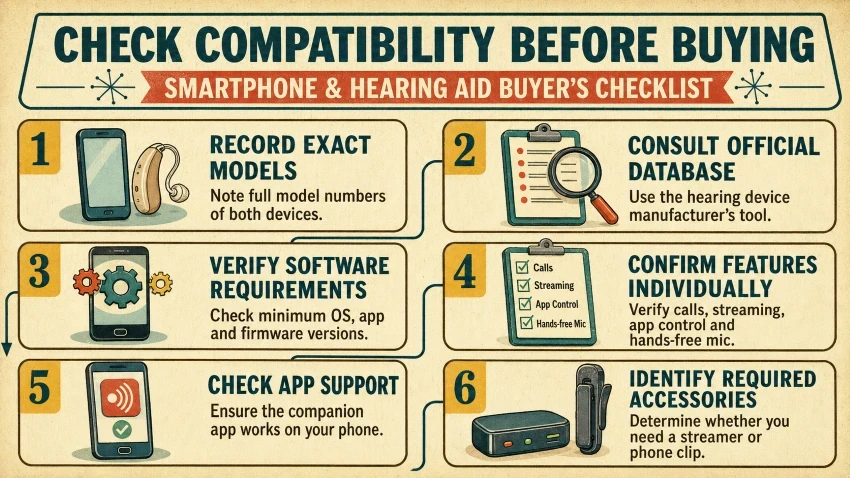
Don’t rely only on a Bluetooth logo or a general statement that a device “works with iPhone and Android.” Compatibility may vary between models within the same phone family, so verify compatibility with specific models and supported features before buying.
- Record exact model numbers: Note the exact model numbers for both your smartphone and your hearing devices.
- Consult official databases: Use the manufacturer’s official compatibility tool rather than relying solely on general phone specifications.
- Verify software requirements: Verify the necessary versions of the OS, companion app, and hearing aid firmware.
- Confirm features individually: Check call streaming, media playback, app control, and hands-free microphone support individually.
- Check app store support: Make sure the companion control app works with your phone’s processor and OS version.
- Identify required accessories: Determine whether an intermediate phone clip, neckloop, or TV streamer is needed for complete connectivity.
Technical specifications can influence how effectively the two devices operate together. Our straightforward guide to the latest hearing-device specs clarifies the key hardware features so you understand what they mean before making a purchase.
Test the Devices Together
Compatibility lists show what should work, but real-world testing reveals how reliably two devices perform in daily use. Perform these checks before buying or within the retailer’s return window.
- Pair both hearing devices: Ensure that both the left and right ears connect at the same time and stay synchronized in audio output.
- Make a phone call: Verify call audio clarity in both ears.
- Test the microphone: Check if your voice is picked up by the hearing devices (hands-free) or if you need to speak directly into the phone.
- Stream media: Play a music track or video to test for audio delay, sound clarity, and lip-sync accuracy.
- Open the companion app: Test live adjustments to volume, program settings, and battery monitoring.
- Test range and reconnection: Remove yourself from the phone until the signal is lost, then return to see if it reconnects on its own.
- Restart the phone: Restart the handset to guarantee the hearing devices reconnect automatically, avoiding manual re-pairing.
Pro Tip: Repeat essential tests in various settings, such as noisy environments or outdoors. Frequent dropouts, delayed audio, or audio streaming to a single ear often suggest incomplete protocol compatibility.
The technology-buying checklist for seniors guides users to ask important questions before choosing a device and aids in a thorough review of the purchase.
What to Do When Compatibility Is Limited
A failed connection doesn’t necessarily imply the devices are completely incompatible. Usually, temporary disconnections are caused by software updates, missing app permissions, or an incomplete initial setup.
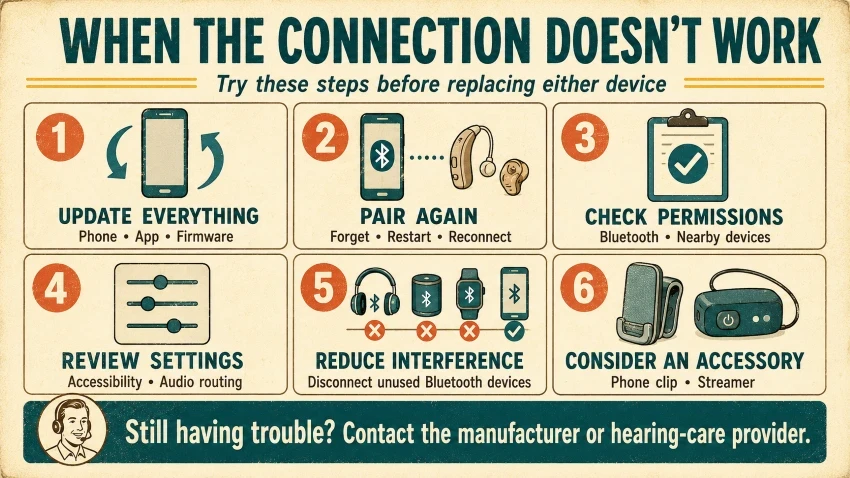
Try these troubleshooting steps before giving up on a pairing:
- Install all pending updates: Update your smartphone’s operating system, the hearing aid’s companion app, and the hearing aid’s firmware.
- Re-pair from scratch: Remove the hearing devices from your phone’s Bluetooth settings, restart your device, and then pair them again.
- Review application permissions: Check your smartphone’s settings to make sure the companion app has clear permissions for Bluetooth, location, and nearby devices.
- Check accessibility menus: Ensure your hearing devices are properly registered in the designated accessibility sub-menu (e.g.,
Settings > Accessibility > Hearing Deviceson iOS). - Disconnect conflicting Bluetooth devices: Unpair or disable nearby devices, such as smartwatches or wireless earbuds, that could interfere with audio routing.
- Consider an intermediate streamer: Inquire whether an official phone clip, neckloop, or streamer accessory can enable the connection if direct streaming isn’t possible.
- Request specialist support: Contact your audiologist, hearing care provider, or the device manufacturer’s customer support directly.
Before Purchasing: Always verify with the hearing aid manufacturer or audiologist if a proposed streamer or accessory supports your specific features, such as direct phone calls or app control.
Quick Compatibility Checklist
Save, screenshot, or print this checklist to bring with you when shopping for smartphones or hearing devices.
Phase 1: Before You Buy
- [ ] Record exact phone model number: Note the full alphanumeric model string (not just “Samsung Galaxy”).
- [ ] Record exact hearing-device model: Note the exact brand, series, and tech level.
- [ ] Check official compatibility lists: Cross-reference both model numbers on the hearing aid manufacturer’s database.
- [ ] Verify software requirements: Confirm required operating system (iOS/Android), app build, and hearing aid firmware.
- [ ] Check companion app support: Ensure the app is available and fully functional for your smartphone’s processor.
- [ ] Verify individual features: Confirm call streaming, music playback, and app controls separately.
- [ ] Confirm hands-free capabilities: Determine if two-way hands-free calling is supported or if you must speak into the phone.
- [ ] Identify required accessories: Ask if an intermediate streamer or phone clip is required for full connectivity.
Phase 2: Before the Return Window Closes
- [ ] Pair both hearing devices: Ensure both left and right ears connect simultaneously and stay synchronized.
- [ ] Make and receive a phone call: Test audio clarity in both ears during an active call.
- [ ] Verify voice pickup: Confirm whether your voice is captured by the hearing aid microphones or the smartphone microphone.
- [ ] Stream media: Play music and video to evaluate sound quality and lip-sync synchronization.
- [ ] Test companion app controls: Adjust volume, toggle program presets, and check battery tracking.
- [ ] Test stability & reconnection: Step out of Bluetooth range, then come back and verify that the devices reconnect automatically.
- [ ] Verify real-world reliability: Test the entire setup in noisy or outdoor conditions before your return window closes.
Our checklist for senior-friendly hearing devices also covers controls, comfort, charging, daily handling, and other essential aspects.
Frequently Asked Questions
Does standard Bluetooth ensure complete compatibility?
Standard Bluetooth enables device pairing but does not guarantee support for direct audio streaming, app controls, or hands-free calling. These features rely on dedicated low-energy protocols such as MFi, ASHA, or LE Audio and require separate verification.
Can a hearing device work with both iPhone and Android?
Many modern hearing devices are compatible with both iOS and Android platforms. However, features like hands-free voice pickup and companion app capabilities can vary greatly between the two. It’s important to verify compatibility for each specific phone model rather than assuming they all perform the same.
Can a software update affect the connection?
Operating system, companion app, or hearing aid firmware updates often enhance stability. However, major updates may sometimes change permissions, reset Bluetooth pairings, or cause temporary audio routing bugs. If problems arise after an update, consult the manufacturer’s compatibility guidance.
Can older hearing devices connect to newer smartphones?
Older models typically connect via Classic Bluetooth, a telecoil, or an intermediate streaming accessory such as a neckloop or phone clip. However, they might not support direct low-energy streaming or current app controls, so it’s important to check with the manufacturer about which features are supported before upgrading your phone.
Final Thoughts
Smartphone and hearing-device compatibility goes beyond Bluetooth pairing. Key functions such as direct calls, media streaming, app controls, and true two-way hands-free conversations often rely on multiple wireless protocols and may not all be supported in a single setup.
Before buying either device, cross-check the full model numbers against the manufacturer’s official compatibility database. Also confirm whether specific operating system versions, app updates, or accessory streamers are required to access the features you want.
Most importantly, conduct a comprehensive hands-on test of both devices together. Check call quality, audio balance, and connection stability in real-world settings before the retailer’s return window closes.