

A tablet can make video calls, reading, and browsing more comfortable, but the largest screen or the lowest price doesn’t always make it the easiest to use. Large models can be tiring to hold, while cheaper ones often lack important features you rely on.
Start by thinking about what you want to do on the tablet, then consider whether it is comfortable for reading, holding, listening, and navigating. This guide shows you which features to check and offers a simple way to try a tablet before you buy.
Choose How You’ll Use the Tablet
List the three things you’ll do most often before comparing brands or prices:
- A tablet primarily used for video calls needs a clear speaker.
- A good front camera.
- A screen that’s easy to see.
Screen comfort and weight may matter more if you’ll mostly read books or news articles.
| The Use Intent | What to Consider |
| Video call family and friends | Speaker clarity, front camera, and ease of opening the calling app |
| Read books or browse websites | Text size, screen brightness, and comfort while holding it |
| Watch shows or videos | Screen size, sound, and a stand or case |
| Use email, banking, or other apps | Whether your essential apps are available and easy to navigate |
Choose an Easy-to-Read Screen
A larger screen can make reading and video calls more pleasant, but screen size alone does not tell you how easy a tablet will be to see or use. Check the display with the kinds of pages and apps you’ll open every day.
- Text size: Enlarge the text and check whether menus, messages, and websites remain easy to use.
- Brightness and glare: Look at the screen under the lighting you’ll usually use the tablet in. Reflections can make reading uncomfortable.
- Contrast: Check whether you can clearly distinguish between text, buttons, and icons.
- Screen size versus weight: A larger display gives you more room to read, but it may be less comfortable to hold for extended periods.
Many tablets let you adjust text size. For example, Apple explains how to enlarge text on an iPad.
The setting can be useful, but try it in the apps you plan to use to see whether the overall experience feels comfortable for you.
Assess the Tablet’s Weight and Grip
A tablet may feel light at first but become tiring during a long video call or reading session. Hold it as you would at home to see if its size and weight feel right for you.
- Weight: Hold the tablet for a few minutes while both sitting and standing.
- Grip: Check whether your hands can comfortably reach the edges and buttons.
- Case: Find a case that gives you a better grip and props up the screen for video calls.
- Charging: Try plugging in the cable. The charging port should be easy to locate and use, even with a case on.
A stand lets you read or watch videos without holding the tablet. This simple setup guide for seniors can help you prepare your tablet for everyday use.
Test How Easy the Tablet Is to Use
The best way to judge a tablet is to try a few everyday tasks. A clear screen matters little if the menus and controls are confusing.
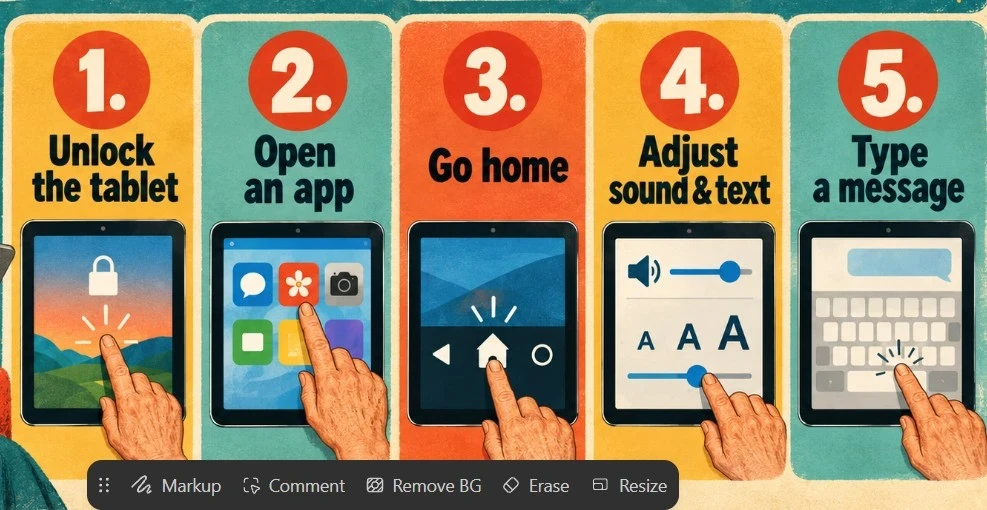
Ask the person who will use the tablet to try these five tasks:
- Unlock the tablet.
- Find and open a familiar app.
- Return to the home screen.
- Increase the volume and text size.
- Type and send a short message.
Notice where they pause or ask for help. A single unfamiliar step is easy to learn, but repeatedly struggling to find basic controls can make the tablet frustrating to use every day.
Test Sound, Video Calls, and Accessibility
Clear audio and a functional front camera are essential if video calls are the main reason for buying a tablet. Test both with the person who’ll use the device, ideally in a noisy environment.
- Speaker: Play a video featuring someone speaking. Make sure their voice is clear and at a comfortable volume.
- Microphone: Record a brief voice message or place a test call, then ask the other person if they can hear you clearly.
- Front camera: Make a video call to see how you look with the tablet propped up on a stand.
- Captions: Open a video you normally watch and see whether captions are available and easy to read.
- Hearing devices: Check the tablet’s compatibility with the specific hearing aids or headphones you use. Try pairing them when possible.
Apple’s guide to iPad hearing features covers captions, audio adjustments, and compatible hearing devices. Features vary by tablet and software version, so check the model you’re considering.
Buying tip: Bring your usual headphones or hearing devices with you when you visit the store. Trying them out can reveal issues that a product description won’t.
Compare iPad, Android, and Fire Tablets
A tablet’s operating system determines which apps are available and how familiar its controls feel. Start with the apps you already use, then think about who the tablet will help.
- iPad: It’s a natural choice if you already use an iPhone. Make sure the apps you need are available on iPad.
- Android tablet: Consider it if you already use an Android phone or prefer a specific tablet model. Controls and features vary by brand.
- Amazon Fire tablet:
Check that the apps you rely on are available. Fire tablets use Amazon’s app ecosystem, so apps you use on other Android devices may not work the same way on a Fire tablet.
This guide to the best video call apps for staying connected with elder caregivers can help you choose an app and check whether it works on the tablet you have in mind.
Check Amazon Fire Tablets
Helpful tip: Make a short list of essential apps, such as video calling, banking, or library apps, and check whether the tablet you’re considering supports them.
A family member familiar with the same type of device can also help answer routine questions.
Compare the total cost and software support
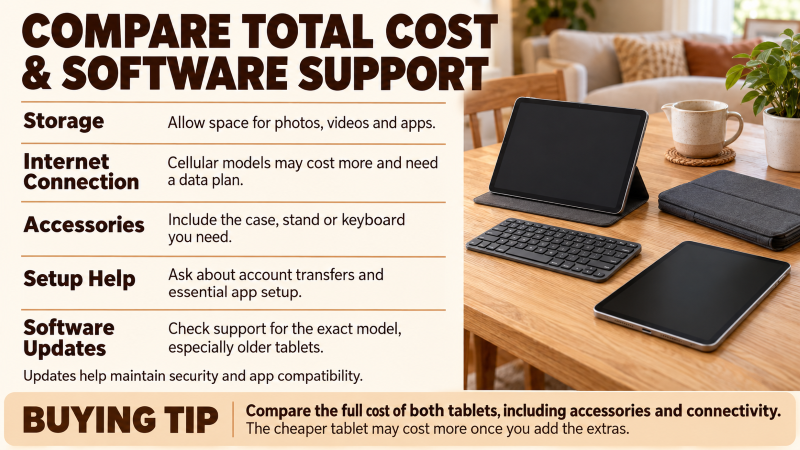
The price on the box is only part of the total cost. Compare what you’ll need to use the tablet comfortably and how long the manufacturer plans to support it.
- Storage: Photos, downloaded videos, and apps all use storage. Make sure the model has enough space for what you plan to store.
- Internet connection: A Wi-Fi tablet connects to a Wi-Fi network. A cellular model costs more and may require a data plan.
- Accessories: Include the cost of any case, stand, or keyboard you plan to use.
- Setup help: Ask if the store can help transfer your accounts and set up essential apps.
- Software updates: Check the manufacturer’s support information for the exact model, especially if you’re buying an older or refurbished tablet.
Updates help keep devices secure and working properly, and they can affect app compatibility over time. This article on why your phone keeps asking for updates explains the same basic idea, but focuses on phones.
Buying tip: Compare the total cost of both tablets, including the accessories and connectivity you need. The cheaper tablet may cost more once you add those extras.
Questions to Ask Before You Buy
Bring this checklist to the store or use it to compare tablets online. It gathers the most important checks in one place.
- Can I read the screen comfortably? Try a webpage and an app with larger text.
- Can I hold and charge it easily? Inspect the weight, grip, buttons, and charging port.
- Can I complete my usual tasks? Try launching an app, starting a video call, or sending a message.
- Are my essential apps available? Check the tablet’s exact model, especially if it’s a Fire tablet.
- What else will I need to pay for? Add a case, stand, data plan, or setup assistance.
- Who can help me later? Consider who you’ll turn to for setup and questions.
Helpful tip: Let the person who’ll use the tablet try it out. Their comfort matters more than any feature list.
Common Purchasing Mistakes to Avoid
A tablet may seem like a great deal but still be a poor choice for everyday use. Keep these common mistakes in mind as you narrow down your options:
- Choosing by screen size alone: A bigger screen may be easier to read, but more tiring to hold.
- Buying the cheapest model without checking apps: Check whether it runs the services you actually use.
- Assuming a “senior tablet” is automatically simpler: Try the controls for yourself, then compare them with those on a standard tablet.
- Forgetting the extra costs: A case, stand, or cellular plan may affect the total price.
- Buying an older model without checking updates: Check the manufacturer’s software support for that specific model.
- Buying it as a surprise: The intended user might prefer a different size, screen, or set of controls.
Helpful tip: A few minutes of hands-on testing can keep you from making an expensive purchase you won’t use.
Final Thoughts
First, consider how you’ll use the tablet most. Video calls, reading, and everyday apps each prioritize different features. Choose a screen that’s easy to read and a tablet that’s comfortable to hold and charge.
Check the sound, then try a few everyday tasks, such as opening an app or typing a message. Make sure the tablet you’re considering includes the essential apps you need.
Consider who can help with setup and answer questions later. Compare the total cost, including accessories or a data plan, and check how long the model will receive software support. The best tablet is one that feels comfortable to use daily.