
Your phone keeps prompting you to update, even though everything seems fine. Should you proceed, postpone, or ignore the prompt?
These prompts cover security patches, bug fixes, and app compatibility updates. Short delays due to travel, low battery, or weak Wi-Fi are acceptable, but longer delays can leave your device vulnerable.
Here’s why these requests keep appearing, how to verify they’re genuine, and what to do before installing.
Why Your Phone Keeps Asking to Update
Repeated prompts don’t mean your phone is malfunctioning. They typically occur because:
- Deferred prompts: The alert persists until you install the prompt.
- Failed installations: Low storage, a weak Wi-Fi signal, or a low battery can interrupt the download process.
- Queued updates: Older devices process updates sequentially rather than simultaneously.
- Rapid-fire patches: A significant OS update is usually quickly followed by minor hotfixes.
- Pending restart: The download finished, but the final installation requires a reboot.
- App vs. System split: App Store updates run independently of your main OS.
Note for Android users: Operating system, security, and Google Play system updates are delivered through separate channels. If an update is interrupted, it will automatically retry silently over several days. Check progress in Settings > System > Software Update (exact labels vary by manufacturer).
What Phone Updates Actually Do
An update replaces certain system files with new ones to keep your device secure and working properly. Depending on the release, it manages:
- Security patches: Protect against vulnerabilities before hackers can exploit them.
- Bug fixes: Prevent unexpected crashes, system freezes, and dropped connections.
- App compatibility: Prevents apps from crashing during background system changes.
- Hardware optimization: Enhances camera performance, extends battery life, and improves wireless stability.
- Feature rollouts: Introduces new tools or updates the UI, though background patches seldom cause visual changes.
Installing updates promptly is especially important for security. The UK National Cyber Security Center explains that updates fix known vulnerabilities that criminals could exploit to compromise your phone.
Is It Safe to Skip a Phone Update?
Short delays are acceptable, but consistently refusing can expose your device to security risks and cause software crashes.
- A few hours to days: Safe. You can safely delay an update when traveling, working, or dealing with a low battery.
- Weeks or months: Unsafe. Unpatched vulnerabilities put your personal data at risk.
- Critical security alerts: Urgent. Install these immediately.
- Unfamiliar popups: Suspicious. Avoid tapping external popups; check for updates in Settings instead.
Delaying an update won’t immediately crash your phone, but repeated postponements can cause app malfunctions, battery issues, and security vulnerabilities.
You can also check out the essential Technology Maintenance Tips for Seniors to enhance your basic tech skills.
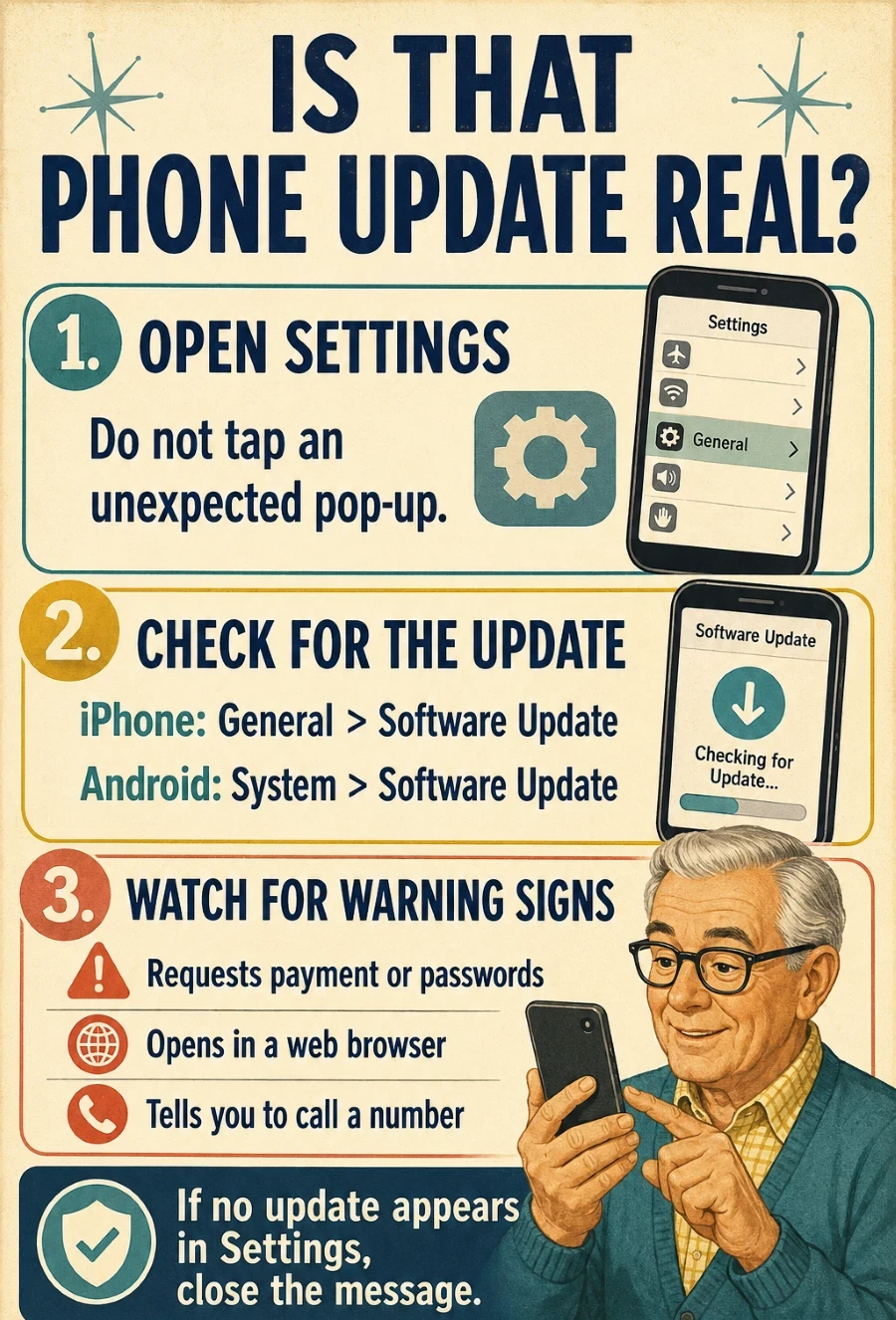
How to Verify a System Update Is Genuine
Update your system securely via your phone’s settings. Avoid tapping unknown pop-ups; instead, check for updates manually.
- iPhone: Go to Settings > General > Software Update.
- Android: Go to Settings > System > Software Update (or Settings > Security & Privacy on select models).
Red Flags for Fake Update Scams:
- The prompt opens inside a web browser.
- It demands payment details, passwords, or phone calls.
- It forces you to download third-party app files.
- It uses threat tactics or pressure timers.
Helpful Tip: If your settings menu shows an unavailable update, dismiss the notification right away.
Steps to Take Before Updating Your System
Prepare your phone to avoid installation issues or data loss.
- Use trusted Wi-Fi: Avoid unexpected mobile data charges during large downloads.
- Charge your phone: Keep the battery above 50% or plug it in.
- Clear storage: Remove any unused apps or files to free up space when it is low.
- Back up data: Prioritize securing your photos, contacts, and important files.
- Time it right: Choose a window where you can go without using your phone for 10–20 minutes.
- Do not interrupt: Do not turn off or restart your phone during installation.
Start the process and follow the on-screen prompts; let the device restart automatically.
Keeping your phone secure and functional is a simple way technology supports older adults in aging in place with greater confidence and independence.
Steps to Take When an Update Fails to Install
Try these troubleshooting steps if your update keeps failing:
- Restart: Turn off your phone, then turn it back on and try again.
- Check Wi-Fi: Move closer to your router for a more stable connection.
- Plug in: Plug your phone directly into a power source.
- Clear space: Remove unused apps, long videos, and duplicate photos to free up storage space.
- Wait: Wait a few hours; the update server may be temporarily overloaded.
- Get support: Contact an official support team or a trusted individual for assistance.
Apple provides additional instructions for fixing an iPhone or iPad that will not update.
Helpful Tip: Never download third-party “update tools” or respond to unexpected callers. Official updates are only accessible via your phone’s built-in settings.
What Happens if Your Phone Stops Receiving Updates?
Manufacturers eventually cease providing updates for older devices. Your phone won’t suddenly turn off, but its security risks increase gradually.
Signs Support Has Ended:
- You haven’t received any update alerts for over a year.
- Your phone cannot be upgraded to the latest OS.
- Core apps either cannot update or do not open at all.
- The manufacturer lists your model as end-of-life on their website.
What to Do: Avoid using unsupported phones for mobile banking, online payments, or storing sensitive personal data. If cost is an issue, a budget-friendly new phone with active security updates is much safer than an expensive, outdated one.
Use our tech-buying checklist for seniors to identify the features and support you need before buying a new phone.
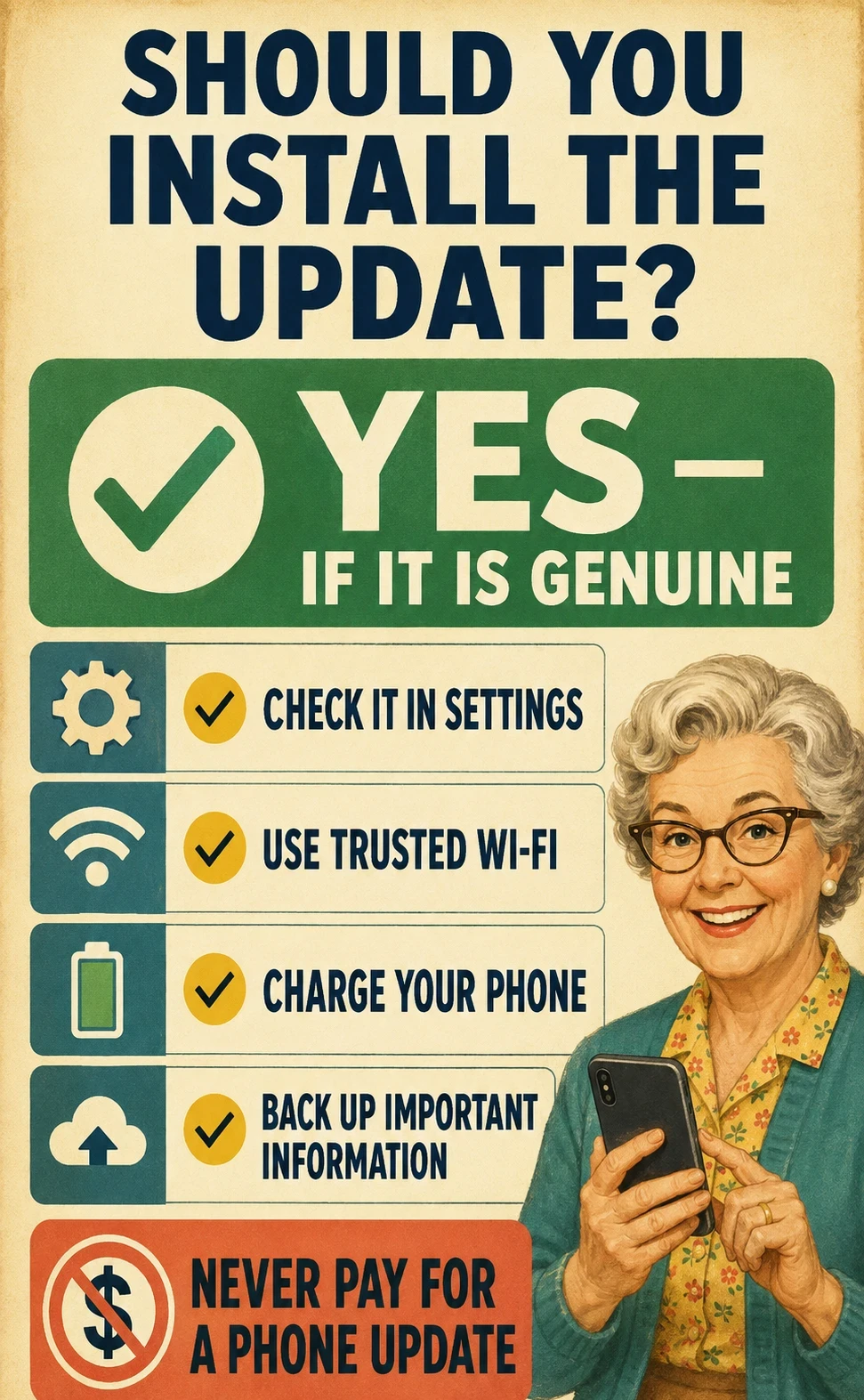
Is it advisable to install the updates?
Yes, provided they are authentic. You don’t have to install it immediately when a pop-up appears, but don’t delay installation for weeks or months.
Quick Checklist:
- Verify: Check your phone’s Settings menu.
- Prepare: Connect the device to power and ensure it is connected to a protected Wi-Fi network.
- Back up: Prioritize saving essential photos, contacts, and files.
- Troubleshoot: Seek official help if the installation continually fails.
- Stay safe: Never pay for updates or enter your passwords in pop-up windows.
Regular updates help keep your phone secure, stable, and compatible with apps.
Frequently Asked Questions
Will updating my phone delete my photos and contacts?
No, a typical software update does not delete your personal data. Nevertheless, backing up beforehand offers extra security in case something goes wrong.
Why does my phone appear different after updating?
Major updates may refresh icons, modify menu layouts, or adjust settings. Your data stays safe, though some controls might move.
Are phone updates free or do they require payment?
Official system updates are entirely free. Downloading via cellular data may use your mobile plan’s data allowance, but manufacturers do not charge for the software itself.
Is it safe to use my phone while an update is in progress?
You can use it while the update file downloads in the background. However, the device will remain unavailable until the restart and installation are complete.
Final Thoughts
Repeated update reminders can be annoying, but timely updates are crucial for your phone’s security and performance. You can postpone an update to a more convenient time, but neglecting it for too long increases the risk of security issues and app bugs.
To stay safe, verify each update in your phone’s Settings app rather than clicking unfamiliar pop-ups. Before you start, make sure your device is charged, connected to Wi-Fi, and backed up to protect your personal data. Taking a few simple precautions can provide peace of mind during installation.
Contact a trusted individual or official support if anything seems abnormal or keeps failing. By following these basic practices, you can ensure your device operates safely and with confidence.