
Learning to use computers can feel like learning a new language. Even simple terms like “browser,” “cursor,” or “download” can be confusing when you’re navigating a screen for the first time.
This reference provides clear definitions and practical examples of key computer terms. Each explanation shows how the concept applies to everyday tasks, helping you build confidence more quickly.
Bookmark this page to look up unfamiliar terms as they appear. Whether you’re browsing the web, checking email, or organizing files, it serves as a quick reference.
Common Types of Computers
A computer is an electronic device that processes information and performs everyday tasks. From typing documents and sending emails to browsing the web, watching videos, or making video calls, computers handle these tasks through applications called software.
The three main types of computers are:
- Desktop: A desktop computer placed on a desk, with its own monitor, keyboard, and mouse. Ideal for users who want a larger display and a fixed setup.
- Laptop: A compact, all-in-one device that includes a built-in display, keyboard, touchpad, and battery, designed for portability.
- Tablet: A lightweight touchscreen device, such as an iPad, operated by tapping and swiping, is convenient for reading, streaming, and casual web browsing.
Follow the Simple Tablet Setup Guide for Seniors for clear, step-by-step instructions if you are setting up a new tablet.
Why Computers Matter
A computer helps you stay independent and stay in touch from home.
- Handle Daily Tasks: Bank, shop, or book doctor appointments online without traveling.
- Stay Connected: Video call, message, or share photos with family and friends.
- Learn New Things: Watch tutorials, read daily news, or take free online classes.
- Enjoy Entertainment: Stream music, watch movies, play brain games, or read digital books.
Hardware, Software, and Operating Systems
Hardware
Hardware consists of the physical parts of a computer that you can see and touch.
- Monitor: The screen that displays text, photos, and videos.
- Keyboard: The keys used for typing.
- Mouse: The handheld tool used to move the screen pointer and click items.
- Printer: Prints your digital documents onto paper.
- Webcam: A small camera used for video calls.
Software
Software includes the programs and applications that run the computer.
- Web browser: Opens websites on the internet.
- Email app: Sends and receives messages.
- Word processor: Creates written documents like letters.
- Video app: Lets you video call family, friends, or doctors.
Operating System (OS)
The operating system is the core program that controls your computer. It launches applications, manages your files, and connects you to the internet.
- ChromeOS: Used on Chromebooks.
- Windows: Used on most PCs.
- macOS: Used on Apple computers.
Computer Screen and Navigation Terms.
- Desktop: The main screen you see when you turn on your computer.
- Icon: A small image representing a program, file, or setting.
- Cursor (Pointer): The arrow that tracks your mouse movement across the screen.
- Window: The box that appears when you open a program or file.
- Menu: A list of choices you can click to take action.
- Scroll: Moving a screen up or down to see more information.
- Click: Press the left mouse button once to select an item.
- Double-click: Double-clicking the left mouse button to open a file or program.
- Right-click: Press the right mouse button to open a list of additional options.
- Drag and drop: Holding down the mouse button to move an item to a new location.
Keep your computer running smoothly and securely with these essential technology maintenance tips for seniors.
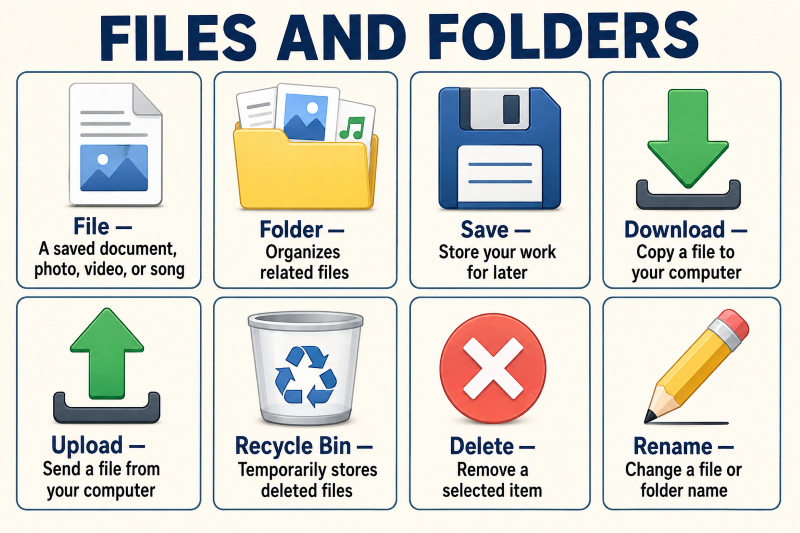
Files and Folders.
- File: A single file stored on your computer, like a document, photo, or song.
- Folder: A digital container that stores and organizes related files.
- Save: Saves your work so you can open and edit it later.
- Download: Copies a file from the internet or email to your computer.
- Upload: Sends a file from your computer to a website or online service.
- Recycle Bin (Trash): Temporarily holds deleted items until you permanently empty the trash.
- Delete: Removes a file, photo, or folder from its location.
- Rename: Renames a file or folder while keeping its content unchanged.
(Note: The outdated “Desktop Icons” and “File and Folder” sections, along with the unrelated link to “The Seven Best Easy-to-Use Home Theater Projectors for Seniors,” have been removed as directed.)
Internet and Browser Terms.
- Internet: A global network that connects devices, letting you view websites, send emails, and watch videos.
- Web Browser: A program used for browsing websites, including Google Chrome, Microsoft Edge, Safari, and Firefox.
- Website: A collection of connected web pages, such as an online bank or news website.
- Webpage: A page that exists as part of a larger website.
- Search Engine: A search engine, such as Google or Bing, that helps you find information online.
- Link: Clickable text or images that direct you to a different webpage.
- Address Bar: The long box at the top of your browser where you enter website addresses or search terms.
- Tab: Lets you open multiple webpages side by side in a single browser window.
- Wi-Fi: Connects your device to the internet via a wireless router and password.
Explore the guide to 15 common tech issues seniors face and how to fix them if your computer freezes, slows down, or behaves unexpectedly.
Email Terms.
- Email: Electronic messages exchanged via the internet.
- Email Address: Your personal digital mailing address (for example, name@example.com).
- Inbox: The main folder for your incoming messages.
- Sender: The person or entity that sends the message, be it an individual or an organization.
- Recipient: The individual or entity who receives the message.
- Subject Line: A brief overview of the email’s main topic.
- Attachment: A photo or file attached to a message. Never open attachments from unknown senders.
- Reply: Replies solely to the sender of the original email.
- Reply All: Forwards your reply to all recipients of the original message.
- Forward: Forwards a copy of a received email to someone new.
- Spam (Junk): Unwanted or unsafe messages automatically directed to a separate folder.
- Draft: An incomplete message saved for sending later.
Online Communication Terms.
- Chat: Communicating instantly through typed messages in an app or on a website.
- Instant Message: A brief message transmitted immediately through apps such as WhatsApp or Messenger.
- Video Call: A live call that allows you to see and hear someone using an internet connection, camera, and microphone.
- Microphone: This device records your voice to ensure others can hear you clearly during calls.
- Webcam: The camera used to show your video during an online meeting.
- Mute: Temporarily mutes your microphone so others cannot hear you.
- Meeting Link: A clickable URL that allows users to join a scheduled video call.
- Social Media: Platforms such as Facebook are used to share updates and photos and to stay connected with friends.
- Profile: Your personal account page shows information such as your name and photo.
- Privacy Settings: Controls that determine who can view your profile, photos, and shared details.
Programs and Computer Actions.
- Program (App): Software created for a particular purpose, like a browser, email client, or game.
- Open: Starts a program or opens a file for viewing on your screen.
- Close: Closes a program, file, or window; save your work beforehand.
- Install: Installs a new program on your computer so you can use it.
- Uninstall: Eliminates an unwanted program from your computer.
- Update: Downloads updates such as fixes, security patches, or new features for software.
- Restart: Restarts your computer automatically to resolve problems or complete updates.
- Shut Down: Completely turns off your computer.
- Settings: It’s where you customize screen text size, sound volume, Wi-Fi, and security settings.
- Notification: A pop-up alert for incoming emails, updates, or reminders.
Use the technology buying checklist for seniors to identify the features that matter most before purchasing a computer or another device.
Online Safety Terms.
- Password: A secret combination of letters, numbers, and symbols that safeguards an account. Always use a different password for each website.
- Password Manager: An app that safely generates and stores your passwords, so you only need to remember one master password.
- Two-Factor Authentication (2FA): A second security measure that asks for a code sent to your phone or another device after you input your password.
- Passkey: A safe sign-in option that uses your fingerprint, face, or screen lock instead of a regular password.
- Virus: A malicious program that corrupts files, slows your computer, or infects other devices.
- Malware: Unwanted software that steals information or damages your computer.
- Antivirus Software: Security software that detects, prevents, and eliminates malicious programs from your system.
- Phishing: Emails or messages that are faked to deceive you into sharing personal or banking information.
- Scam: An attempt to deceive you into revealing money, personal details, or access to your account.
- Secure Website: A website that employs encryption, recognizable by an address beginning with “https://”.
- Backup: An extra copy of your important files stored securely on an external drive or cloud service.
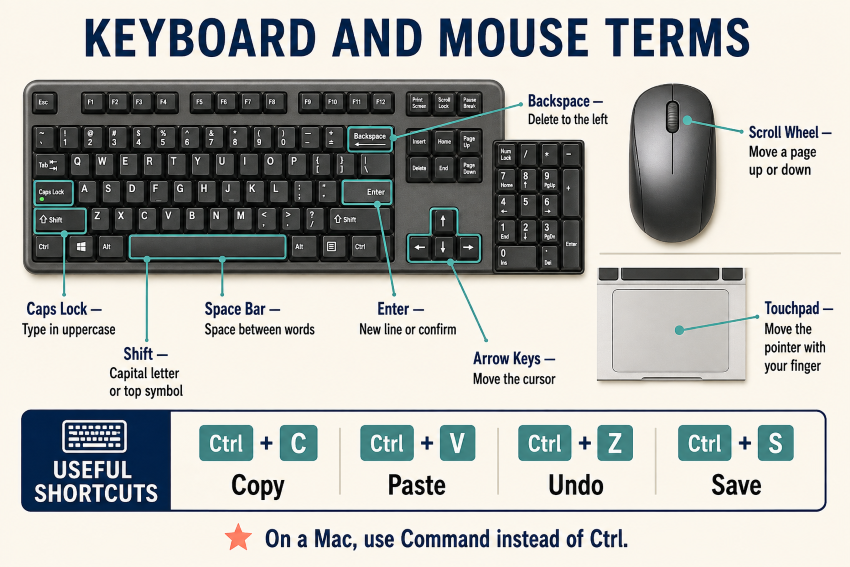
Keyboard and Mouse Terms.
- Key: A key on the keyboard that inputs a character or executes an action.
- Enter Key: Begins a new line of text or verifies a command.
- Space Bar: The long bottom key used to insert spaces between words.
- Backspace Key: Deletes the character immediately to the left of your cursor.
- Shift Key: Hold while pressing a letter to capitalize it or to type top-key symbols.
- Caps Lock: Turns on continuous capital letters until you press it again.
- Arrow Keys: Move your cursor in all directions: up, down, left, or right.
- Keyboard Shortcut: Combining keys to perform tasks fast, like Ctrl + C to copy or Ctrl + V to paste (uses the Command key on Macs).
- Touchpad: The touch-sensitive pad on a laptop that functions as a screen pointer.
- Scroll Wheel: The scroll wheel between the mouse buttons you use to scroll pages up or down.
Computer Ports and Accessories.
- Port: An opening on your computer where you plug in cables or connect additional devices.
- USB Port: Connects everyday accessories such as a mouse, keyboard, printer, or flash drive.
- HDMI Port: Connects your computer to a TV, monitor, or projector to send both video and audio.
- Headphone Jack: A small round opening for connecting wired headphones or external speakers.
- Charging Port: The port where you plug in your laptop’s power adapter to recharge the battery.
- USB Flash Drive: A small, portable stick used to store and transfer files between computers.
- External Hard Drive: A dedicated storage drive used to save additional files or back up your entire computer.
- Speakers: Devices that output computer sounds, including music, alerts, and voices during calls.
- Power Adapter: The power cord and its box that connect your laptop to a wall outlet.
- Router: The device that provides internet access to your home and broadcasts the Wi-Fi signal.
Storage and Performance Terms.
- Storage: The permanent location on your computer where you store files, photos, and programs.
- Hard Drive (HDD): Standard internal storage that contains all your saved data.
- Solid-State Drive (SSD): A faster, modern storage type that enables your computer to start up quickly.
- Memory (RAM): Short-term working memory that enables your computer to run apps smoothly in the moment.
- Processor (CPU): The computer’s processor that executes all tasks and commands.
- Storage Space: The total available storage space on your device for saving new files.
- Cloud Storage: Uploads your files to online services such as Google Drive or iCloud.
- Battery: Provides power to a laptop when not connected to the wall outlet.
- Freeze: Happens when your screen becomes unresponsive to clicks or typing.
- Restart: Turns the computer off and restarts it to clear minor glitches.
Tips to Practice Computer Terms.
- Practice One Skill Daily: Choose one task daily, such as creating a folder, opening a tab, or using a shortcut.
- Keep a Notebook: Record new terms and useful steps. Do not write your passwords.
- Say Terms Out Loud: Name each action as you perform it, such as saying “address bar” before entering a website.
- Increase Text Size: Change your computer’s display settings to enlarge text for better readability.
- Ask for Help: Ask family, libraries, or senior centers for help, and record their instructions.
- Take Your Time: Focus on short, consistent practice sessions rather than trying to learn everything at once.
Frequently Asked Questions.
How do hardware and software differ?
Hardware includes tangible items such as screens and keyboards, while software consists of the apps and programs that run on them to perform various tasks.
Is a PC different from a computer?
“PC” stands for personal computer. Although it generally refers to a Windows device, Apple Macs are also considered personal computers.
How do memory and storage differ?
Memory (RAM) manages the apps you’re using right now, while storage keeps your photos, documents, and programs saved for the long term.
Where are downloaded files saved?
They typically appear in your computer’s “Downloads” folder. Use File Explorer on Windows or Finder on Mac to locate it.
What should I do if my computer freezes?
Wait a moment to see if it responds. If it remains unresponsive, try closing the app or restarting the computer.
Does restarting a computer delete saved files?
No. A safe restart turns your computer off and back on without deleting your saved files.
Do you need to memorize all computer terminology?
Focus on the terms you use most and keep this guide handy for quick reference when you encounter new words.
Final Thoughts
Learning basic computer terms can make daily online activities easier and reduce intimidation over time.
Start with the most commonly used terms, such as browser, folder, and download, rather than trying to memorize them all at once.
Practice at your own pace, take notes, and revisit this guide to build your digital confidence gradually.