
Many people save precious memories on their phones, tablets, or computers, but few back them up properly. Instead, they rely on confusing cloud services and external drives that often seem too technical.
That’s where the Photo Stick Omni, a small plug-and-play backup device, comes in. It automatically finds and saves your photos and videos.
In this in-depth review, we will explain what the stick is used for, highlight its key features, and share practical tips to help you use it effectively as a simple solution to keep your photos.
What Is the PhotoStick Omni?
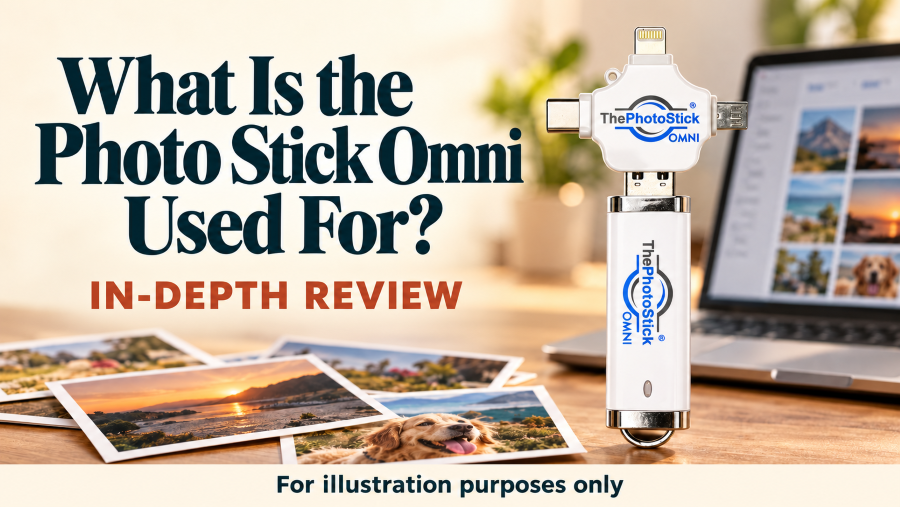
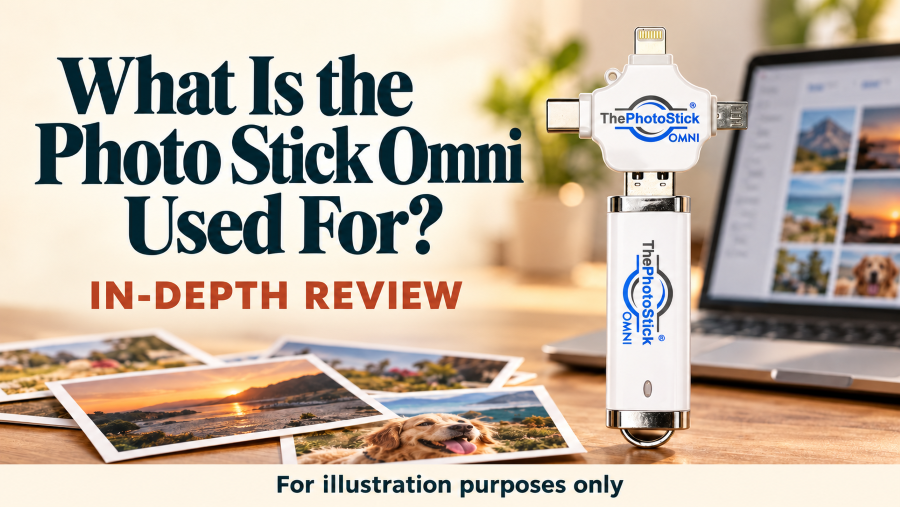
The PhotoStick Omni is a compact, easy-to-use backup device that automatically finds and saves photos and videos from your computer, smartphone, or tablet. It works entirely offline without requiring subscriptions, passwords, or an internet connection, unlike cloud storage.
This device, resembling a standard USB stick, features multiple connectors (USB-A, USB-C, and Lightning), making it compatible with Windows PCs, Macs, Android phones, and iPhones.
Many, including seniors, can use it as a practical alternative to cloud services or manual file transfers to protect their digital memories without needing technical knowledge or complex software.
Photo Stick Omni Features.
The Photo Stick Omni includes several practical features that make photo and video backup straightforward, especially for non-tech users and seniors.
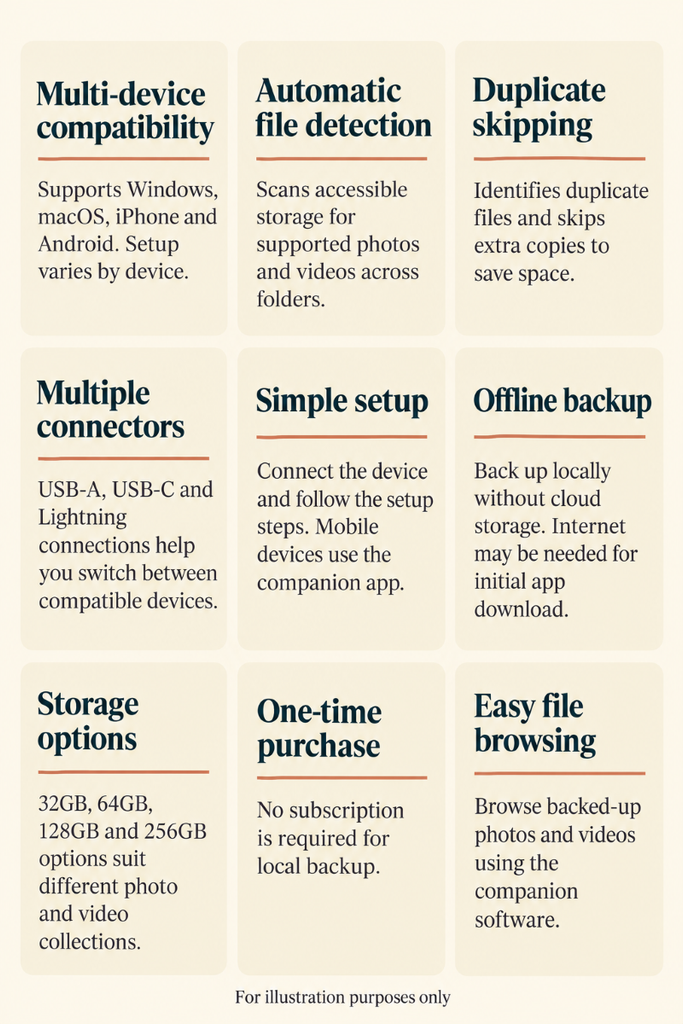
- Multi-device compatibility across Windows, macOS, iPhone, and Android, with minimal setup for most devices.
- Automatic file detection scans your entire device to find photos, videos, and even hidden or scattered files in different folders.
- Duplicate removal identifies and skips duplicates, saving only one copy of each file to maximize storage.
- USB-A, USB-C, and Lightning connectors make the device easy to switch between phones, tablets, and computers.
- Simple plug-and-play setup without technical skills required.
- Works without internet or cloud accounts, keeping your photos on your device and the Photo Stick.
- The device is available in 32GB, 64GB, 128GB, and 256GB capacities, allowing everyone to choose the storage option that best suits their photo and video needs.
- One-time purchase without subscription fees, unlike cloud storage services.
- Groups backed up files neatly so they could find them easily later.
How to Use the Photo Stick Omni Effectively?
A few smart steps for using the Photo Stick Omni can help seniors or anyone who wants a smooth, stress-free backup solution.
Choose the right storage capacity.
- Estimate how many photos and videos you need or plan to back up.
- 128 GB typically stores tens of thousands of files.
- Choose a higher capacity if you plan to use it long-term.
Plug it into your device.
- Use the USB-A or USB-C connector for computers.
- The Lightning or USB-C connector for phones or tablets.
- Ensure your device has enough battery or is plugged in.
Open the companion app or software.
- Download the PhotoStick Omni app from your mobile app store.
- Follow the on-screen instructions after plugging it in on a PC or Mac.
- Tap “Start Backup” to automatically scan for photos and videos.
- Wait for the scan and backup to finish, depending on your media library size.
Wait for the scan and backup to finish.
- The stick removes duplicates and sorts files into folders for easy access.
- Always eject the device properly to avoid file corruption.
- Keep the stick in a safe, dry place for long-term storage.
Helpful Tips: Schedule monthly or event-based backups to keep your files up to date effortlessly, and check for adapter compatibility or app updates if your device doesn’t recognize the stick.
Related content about the Bril UV Toothbrush Sanitizer Review can also help many people, including older adults.
Photo Stick Omni Performance.
The automatic scanner finds images scattered across folders and skips duplicates, allowing you to complete a full photo and video backup in just a few minutes. Compatibility is generally good with Windows, Mac, iPhone, and Android.
However, some users might need to follow additional steps for specific iOS or Mac versions, especially after software updates.
- The desktop software and mobile app are easy to navigate for non-technical users who want to “plug in and save.”
- The device doesn’t rely on the internet, ensuring your files remain entirely private.
Our review of the Chill Pill Sleep Aid Device can also help individuals who struggle to fall asleep at night.
Who Should Use the Device and Who Shouldn’t?
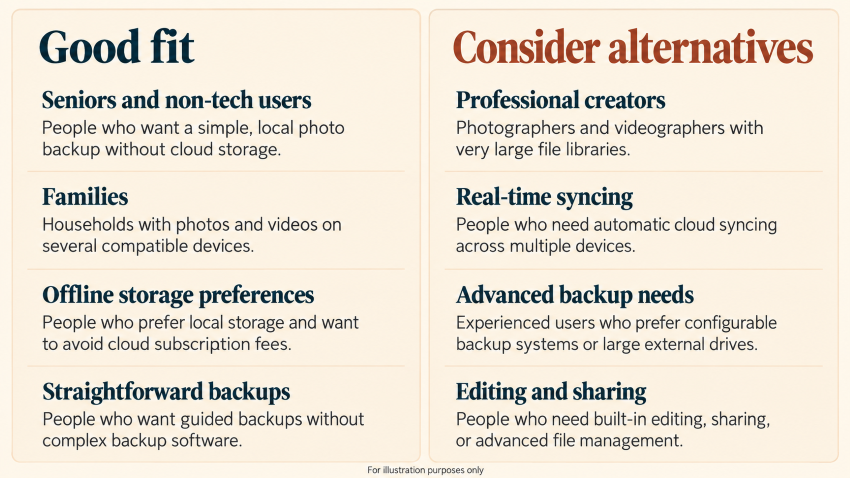
The PhotoStick Omni fits the following individuals:
- Seniors or non-tech users who want a simple, no-cloud way to back up their photos.
- Families who store memories on multiple devices and need one place to save everything.
- Anyone who prefers offline privacy and wants to avoid monthly cloud subscription fees.
- People who want quick backups without learning complicated software.
However, the following users should search for adequate alternatives:
- Professional photographers or videographers with massive file libraries.
- Users who rely on real-time cloud syncing across multiple devices.
- Tech-savvy users who prefer advanced backup systems or large external drives.
- People who need editing, sharing, or advanced management features.
People struggling with hearing issues can also refer to our guide on the Audien Atom Pro Hearing Aids.
Common Questions Answered.
Does the Photo Stick Omni work with iPhone and Android?
This USB-C and Lightning connector is compatible with iPhone and Android devices. You need to install the free companion app on your mobile to start backing up.
How many photos can it store?
This depends on the storage size. The 128 GB version can hold roughly 51,000 photos and videos, which is enough for most everyday users.
Do I need Wi-Fi or the internet to use it?
The Photo Stick Omni works entirely offline, keeping your photos private without subscriptions or accounts. You can use one stick for your phone, tablet, and computer to organize files and automatically skip duplicates.
What happens if the device fails?
It’s best to keep a second backup drive, or an external drive, as an additional physical storage option to protect your memories. The device works with just a few taps and requires no complicated setup, even for seniors.
A guide on the 3-2-1 backup strategy explains more about safe file storage.
Final Thoughts and Next Steps.
The PhotoStick Omni allows seniors, families, and anyone who values ease of use and offline security to back up their entire photo and video library in just a few easy steps.
You safeguard your memories without relying on complicated cloud services or juggling multiple devices.
However, safeguarding your memories is just the beginning, as many people also use their personal stories, travel experiences, or family archives to connect with others online and even build sustainable online income streams.
Sharing your stories online for free can also help you build a business that generates part-time income over time. Check how to get started for free.