


Computers and other devices require protection as we use them to connect online for different tasks, including checking email, shopping, or staying in touch with family.
Criminals often use viruses, scams, and other tricks to steal personal information, and unfortunately, these online malicious actors frequently target seniors.
Still, you can protect your computer with a poweful antivirus software that works quietly in the background, blocking threats before they cause problems.
We will explain in this simple guide what antivirus software is, why it matters for seniors, and how to choose one that’s easy to use for safe online browsing.
What Is Antivirus Software?
An antivirus software program protects your computer, smartphone, or tablet from harmful files and online threats. It constantly monitors incoming and outgoing email attachments, websites, or downloaded files to block anything suspicious.
A few common dangers antivirus software helps stop include:
- Viruses are harmful programs that can damage your computer.
- Spyware software that secretly tracks your online activities.
- Fake emails or websites that try to steal your personal information.
- Ransomware, or scams that lock your files and demand payment.
Most modern antivirus programs run quietly in the background, update themselves regularly, and scan your device to ensure everything is safe. You don’t need to take any action after setup.
Do Seniors Really Need Antivirus Software?
Criminals can hack anyone online, but they more often target seniors, assuming those they target are less familiar with new technology.
A few reasons why seniors may use antivirus software include:
- Scam emails and pop-ups often appear to come from banks, delivery services, government agencies, and other trusted companies to trick you into clicking.
- Criminals use fake websites or malware to steal personal information, such as Social Security or credit card numbers.
- Accidental downloads from the wrong link can install harmful software, and you may not even be aware of it.
Threats usually cause stress, financial loss, and frustration unless you use antivirus software to add a safety net, allowing you to use your computer confidently.
Related Content: Visible by Verizon Wireless Prepaid Plans for Seniors.
Key Features Seniors Should Look For.
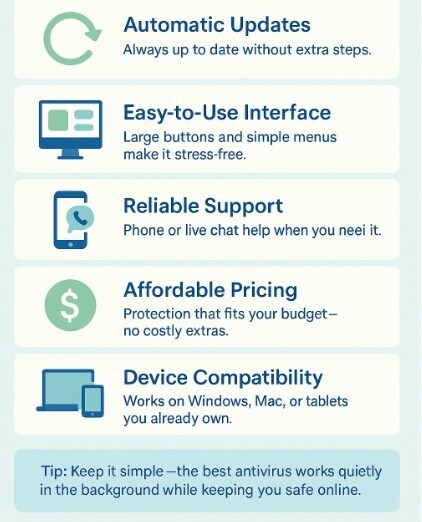
Some antivirus programs feature extra tools you may never use, while others keep things simple and effective, so check the following features when choosing antivirus software.
- Automatic updates to ensure the antivirus can take care of itself by downloading the latest protection automatically, so you don’t need to remember to do it.
- Large icons, clear buttons, and simple menus to help you navigate through complicated settings to stay protected.
- Choose a company that offers live chat or a phone number you can call for help, rather than relying solely on online forums, which can be frustrating.
- Affordable pricing to avoid paying extra for advanced tools, such as corporate security or developer options you won’t use.
- Compatibility to ensure the software works on a Windows computer, Mac, or tablet.
Best Antivirus Programs for Seniors.
Norton 360.
Norton efficiently protects against viruses, malware, and online threats, and can also add tools like cloud backup, identity theft protection, and a VPN.
Key Features.
- Real-time protection against viruses, spyware, and ransomware.
- Automatic updates ensure your security is always up to date.
- Cloud backup to protect important files from loss.
- Many plans include a VPN (Virtual Private Network) for enhanced security and safer browsing.
- A password manager to simplify login details.
- Dark web monitoring to alert you if criminals steal your personal data.
Free or Paid.
Norton 360 doesn’t offer free antivirus software. Prices vary depending on the number of devices and extras you select. They offer a discount for the first year, with a higher renewal rate after.
Why Norton 360 Suits Seniors?
Norton 360 is a “set it and forget it” solution that automatically updates, has a trusted reputation, and offers reliable customer support to minimize the need for technical expertise.
Bitdefender Antivirus Plus.
Independent lab tests often praise Bitdefender for its strong protection and lightweight performance. Its entry-level paid product is “Antivirus Plus edition,” which focuses on Windows PCs with a user-friendly dashboard.
Key Features.
- Real-time protection against malware, ransomware, and viruses.
- Advanced phishing and fraud protection for safer browsing.
- Ransomware remediation to protect personal files.
- Built-in password manager and anti-tracker features.
- A Basic VPN with limited daily data.
- Very light system impact that won’t slow down older computers.
Free or Paid.
Bitdefender Antivirus offers a 30-day free trial to test it and avoid a paid plan if you are satisfied. They also provide a separate “Bitdefender Free Antivirus” version with limited features, although the “Plus” package offers better protection.
Why Seniors Should Use Bitdefender?
Choose Biddefender if you want reliable protection from an antivirus that runs quietly in the background, without slowing down your computer. The free trial lets you try it out before committing to a paid plan.
McAfee Total Protection.
A McAfee Total Protection package includes antivirus, identity monitoring, and privacy tools, making it perfect for households with multiple devices and seniors who use more than one device or share protection with family.
Key Features.
- Fight against viruses, malware, spyware, and ransomware.
- Identity monitoring with alerts if online malicious individuals compromise your personal information or privacy.
- Secure VPN to browse safely on public Wi-Fi.
- It also includes a password manager.
- Privacy and cleanup tools to remove personal data from the web.
- Covers multiple or even unlimited devices depending on the plan.
Free or Paid.
McAfee Total Protection offers various pricing tiers based on the number of devices, along with a 30-day free trial to try the software risk-free.
Why Seniors Should Use McAfee Antivirus?
McAfee Total Protection offers identity monitoring, a VPN, a password manager to avoid installing separate apps, and the ability to share protection tools with family across multiple devices, including computers, tablets, and smartphones, as well as other benefits that make it an ideal option.
Antivirus Comparison Summary for Seniors.
| Feature / Aspect | Norton 360 | Bitdefender Antivirus Plus | McAfee Total Protection |
| Type | All-in-one suite with antivirus + identity tools. | Lightweight antivirus with essential extras. | Full suite covering antivirus, identity, and privacy. |
| Easy of Use | Very user-friendly, automatic updates. | Simple interface, light on the system. | More features = slightly busier interface. |
| Protection | Strong real-time defense + ransomware protection. | Excellent lab scores and powerful malware protection. | Solid protection with extra identity monitoring. |
| Extra tools | Cloud backup, VPN, password manager, dark web monitoring. | A Basic VPN, password manager, and anti-tracker. | VPN, password manager, identity monitoring, data cleanup. |
| Devices Covered | Windows, Mac, Android, iOS (varies by plan). | Primarily Windows (Plus edition); higher plans cover more. | Windows, Mac, Android, iOS, often multiple or unlimited devices. |
| Free or Paid | Paid only, discounted first-year plans. | Paid, with free 30-day trial (limited free version available). | Paid, with a free 30-day trial. |
| Best For | Seniors who want trusted, set-it-and-forget-it security with strong extras. | Seniors who want simple, lightweight, and affordable protection. | Seniors who want all-in-one coverage for multiple devices. |
How to Install and Use Antivirus Safely?
Installing antivirus software may sound complicated, but don’t stress yourself as most modern antivirus programs will guide you through setup with clear on-screen instructions.
Here’s a simple step-by-step guide:
Choose and Download Your Antivirus.
- Visit the official website of your chosen antivirus, such as Norton, Bitdefender, McAfee, or a similar product.
- Avoid downloading from unknown sites that can offer fake or harmful versions.
- You can also see the FTC’s computer security advice on staying safe online for reference.
Run the Installer.
- Double-click the downloaded file.
- Click “Next” or “Agree” to the terms and follow the prompts.
Activate the Software.
- Enter your license key or sign in with your account if required.
- Enter an email address for a free trial.
Set to Automatic Updates and Run Your First Scan.
- Enable automatic updates to avoid the need to check manually.
- Run a full system scan after installation to check possible threats and remove them.
Check the Icon.
- Check for the antivirus icon in the system tray at the bottom corner of your screen.
- The system protects you if you see a green checkmark or shield.
Related Content: Visible by Verizon Best Mobile Phones for Seniors.
Frequently Asked Questions About Antivirus Programs.
Do I need an antivirus if I use a Mac or iPad?
Macs and iPads are generally safer than Windows computers, but they can still be subject to scams, phishing emails, and fake websites that can deceive you. Verify that the selected antivirus program protects Macs, iPads, and smartphones.
Will antivirus software slow down my computer?
Modern antivirus programs, such as Bitdefender or Norton, run quietly in the background without slowing down your system, but a full scan can temporarily slow down your device.
Are free antivirus programs good enough?
Free antivirus programs offer basic protection, but they often lack essential features like phishing protection, customer support, or a VPN, unlike paid versions that are more reliable and include important automatic updates for seniors who don’t want extra hassle.
How much does antivirus software typically cost?
Most paid antivirus plans cost between $25 and $60 per year, depending on the number of devices you want to protect. They also offer significant discounts for the first year, so look for simple plans without expensive extras you won’t need to use.
Can I install antivirus software myself, or ask for help?
Most antivirus programs are straightforward to install on your own. However, you can still ask for assistance from a family member or trusted friend if you find the installation process challenging to ensure everything is done correctly.
Related Content: How to Start Your Own Blog to Share Your Stories Online for Free?
Other Safety Tips Beyond Antivirus.
Antivirus software can enhance your safety online, but you can also adopt simple habits to improve your protection as a senior.
- Be cautious with emails, links, and attachments that appear suspicious or request personal information. Avoid clicking on them, or call the company directly if you are in doubt.
- Use strong but simple passwords that combine letters, numbers, and symbols. Additionally, consider using a password manager included in your antivirus plan.
- Update your computer, smartphone, or tablet regularly to receive essential security updates and fixes.
- Avoid public Wi-Fi without VPN protection.
- Back up your files to safeguard copies of important photos and documents in the cloud or on an external drive, thereby avoiding accidental loss.
Tip: Combining these steps with antivirus software enhances protection to surf the internet safely and confidently.
Final Thoughts on Staying Safe with Antivirus.
Antivirus software operates like a digital security guard to protect you from viruses, scams, and other threats, which is crucial for seniors who are often targeted by such threats.
This guide will help you identify key features to look for when purchasing antivirus software and select a senior-friendly one, without compromising your budget.
We also addressed common questions and shared practical safety tips that extend beyond antivirus software. You will undoubtedly stay connected and protect your personal information while surfing online safely with the proper antivirus and a few smart habits.